Guides
Google Forms File Upload Without Sign-In: What Works (2026)
Google Forms makes people sign in to upload files. Here is why, what the limits are, and the alternatives that let anyone upload files without a Google account.
By Bibin MathewUpdated 19 min read
The short answer
You can't turn off the sign-in requirement on a Google Forms file upload question. Google requires every respondent to sign in to a Google account before they can attach a file, and the files land in a folder in the form owner's Drive. If your customers don't all have Google accounts, use a link that accepts uploads without one, such as a Dropbox file request or OneDrive "Request files" for occasional files, a form builder like Jotform when you need answers too, or a collection tool like Tangentflow when you need a checklist, checks and reminders, with delivery to Google Drive on Pro.
It looks like the easy answer. You already use Google Workspace, you already make Google Forms for intake and quotes, and Forms has a File upload question. So you add one, send the link to a customer, and wait for their photos or documents.
Then the replies start. "It's asking me to sign in." "I don't have a Gmail account." "It says I need permission." Some customers make a Google account just to send you one PDF. Most don't. They email the file instead, or text it, or give up until you call them.
This guide is for small businesses in the US and Canada who tried Google Forms to collect files from customers and hit that sign-in wall: contractors collecting job photos, property managers collecting applications, accountants collecting tax slips. It explains how Google Forms file uploads work today, why there is no setting to switch off the sign-in, and which alternatives let people upload files without a Google account. Several are free, and for many businesses a free option is enough.
At the end there is a step-by-step setup in Tangentflow, including how to keep the files arriving in Google Drive if that's where you wanted them in the first place.
How Google Forms file upload works today
Here is what Google's own help page for Forms question types says about the File upload question, at the time of writing:
- Respondents must sign in. "To answer this question, responders need to sign in to a Google Account." There is no setting to turn this off for a file upload question.
- Files go to the form owner's Drive. Uploaded files are stored in a new folder in the form owner's Google Drive, so they use the owner's storage.
- Some forms can't use it at all. The question type is not available if the form is stored in a shared drive, or if your Workspace administrator has turned on Data Loss Prevention.
- You can set limits. You can restrict which file types are allowed, the maximum number of files per question and the maximum size of each file.
In the editor, the limits are picked from menus. At the time of writing, those menus offer 1, 5 or 10 files per question and a per-file maximum from 1 MB up to 10 GB, plus a cap on the total size of everything the form collects (up to 1 TB). The exact options change from time to time, so check the question's settings in your own form.
If you use a Google Workspace account (a work or school account), there is one more layer. Google's Workspace updates announcement for this feature said people outside your domain can upload files only if both organizations allow cross-domain sharing in Drive. Your admin can also turn off file uploads or restrict them to people inside the organization. If the file upload option is grayed out or external customers get a permission error, that setting is the first thing to ask your admin about.
Why Google won't let anonymous people upload files
Google doesn't spell out its reasoning, but the design points to a few likely reasons, and they explain why no setting makes the sign-in go away inside Google Forms itself.
- Every file needs an owner. An upload has to come from somebody's Google account so Drive can record who added it and apply that account's rules.
- Abuse protection. A public form that accepts files from anyone, with no account, is an easy way to dump malware or illegal content into someone's Drive. Tying uploads to accounts makes that harder to do and easier to trace.
- Identity on the response. Forms shows respondents that their account details are recorded when they upload, so the form owner can see who sent each file.
That design makes sense inside a company or a school, where everyone already has a Google account. It is a poor fit for customers, who use Outlook, iCloud or work email, or are signed in to the wrong Google account on their phone.
When Google Forms is still the right tool
Before you switch, be honest about who is sending you files. Google Forms file upload is fine when:
- Everyone uploading is inside your organization. Staff submitting expense receipts, a teacher's own class, volunteers who all use your Workspace.
- Your customers reliably have Google accounts. Some audiences do, for example other businesses on Google Workspace that allow cross-domain sharing.
- You only need the files, not much else. No deadline to chase, no checking, no follow-up.
If that's you, keep using it, with a sensible file type and size limit. If your customers are the general public, the sign-in wall will cost you responses.
Ways to let people upload files without a Google account, compared
Here is an honest comparison of the realistic options. Plans and limits change, so treat the details as "at the time of writing" and check each provider's current plan page.
| Method | Uploader needs an account? | Free option | Size limits (at the time of writing) | Organizes by customer | Reminders and checks |
|---|---|---|---|---|---|
| Google Forms file upload | Yes, a Google account | Yes | Set per question, up to 10 GB per file | By response | None |
| Google Drive shared folder | Generally yes to add files | Yes | Your Drive storage | Only if you make a folder per customer | None |
| Dropbox file request | No | Yes (Basic) | 2 GB per file on Basic, more on paid plans | One folder per request | Deadlines on paid plans only |
| OneDrive "Request files" | No | Work or school accounts only | Your OneDrive storage | One folder per request, name prefix | None |
| Form builder with uploads (Jotform, Typeform) | No | Jotform yes, limited; Typeform uploads are paid | Plan-based storage and per-file limits | By submission | Form-level only |
| Email attachments | No | Yes | Roughly 20 to 25 MB per message on most providers | Your inbox | Manual |
| Tangentflow | No | Yes, one open request | Plan-based retention | One request per customer, files filed under each checklist item | AI reminders and instant document checks |
Dropbox file requests
A Dropbox file request gives you a link that anyone can use to upload into a folder in your Dropbox. Dropbox's help center says plainly that anyone can send you a file "whether they have a Dropbox account or not." Uploaders can't see what's already in the folder.
At the time of writing, files sent through a request can be up to 2 GB each on Basic, Plus and Family plans, and much larger on Professional and business plans. Setting a deadline is limited to paid plans. Uploads count against your own Dropbox storage, and the free Basic plan has little room, so a few videos will fill it.
Good for: occasional or large files. Not great for: a list of different items, because the request doesn't show what's missing or check what arrives.
OneDrive "Request files"
Microsoft's Request files works much the same way: you pick a folder, share a link, and people upload into it. Microsoft's support page says anyone with the link can send you a file and does not need OneDrive. If they are not signed in, they're asked for a first and last name, which is added as a prefix to their files. Uploaders can't view, edit or download anything in the folder.
The catch is availability. At the time of writing, Microsoft's page says Request files is for OneDrive for work or school, is not available for OneDrive for home, and needs your administrator to allow it (it depends on "Anyone" sharing links being enabled). If you're on Microsoft 365 for business, it's already in what you pay for.
Good for: Microsoft 365 businesses that want files in OneDrive or SharePoint at no extra cost. Not great for: personal Microsoft accounts, or anything beyond "drop files here."
A Google Drive shared folder
This is the workaround many people try next, and it usually doesn't solve the problem. In general, adding files to someone else's Drive folder in a browser still means signing in to a Google account, so you hit the same wall. It also adds new risks: one folder shared with every customer lets everyone see everyone else's files, "anyone with the link can edit" lets anyone delete or rename files, and shared folders tend to stay open long after the job is done. If you use Drive this way, make one folder per customer, share it only with that customer and close it when you're finished.
Form builders with file uploads (Jotform, Typeform and similar)
Online form builders let respondents upload files without an account, and they're a good fit when the files come with a lot of questions, such as a job application or an intake questionnaire.
At the time of writing:
- Jotform has a free Starter plan with file upload fields, limited to 5 forms, 100 submissions a month and 100 MB of upload space. Paid plans start around $39 a month. It can also send uploads to Google Drive through an integration.
- Typeform's help center lists the File Upload question as a feature of its paid plans, with a 10 MB limit per file.
Good for: applications and intake forms where most of the work is answering questions. Not great for: chasing several documents from the same person over a week or two. A form is a single submission. If one file is wrong, you usually send a new form or fall back to email.
Email needs no setup, and for a file or two it's fine. It gets messy fast: attachment limits of roughly 20 to 25 MB per message on most providers, files scattered across threads, no way to see what's missing, and sensitive documents sitting in inboxes for years.
A collection tool like Tangentflow
A dedicated collection tool sends each customer a private link to their own checklist. They upload from their phone with no account, each file is checked when it arrives, and the tool reminds them about what's still missing. It makes sense when you collect several items from many customers and the chasing is what costs you time.
When the free option is enough
To be fair about it:
- One file from one person, once? Email it or use a Dropbox file request.
- You're on Microsoft 365 for business? OneDrive Request files costs nothing extra.
- Lots of questions, a few attachments, low volume? Jotform's free plan may cover you.
- Everyone has a Google account? Stay on Google Forms.
The paid tools earn their keep when you need the same set of documents from many customers, they need to be right the first time, and you're tired of writing follow-up emails.
How to collect files without a Google account in Tangentflow, step by step
Tangentflow gives each customer one private link that opens on any phone with no account, no app and no password. An AI collection agent sends the invitation, answers questions and reminds them about what's still missing. Here's the setup.
1. Build a checklist of what you need
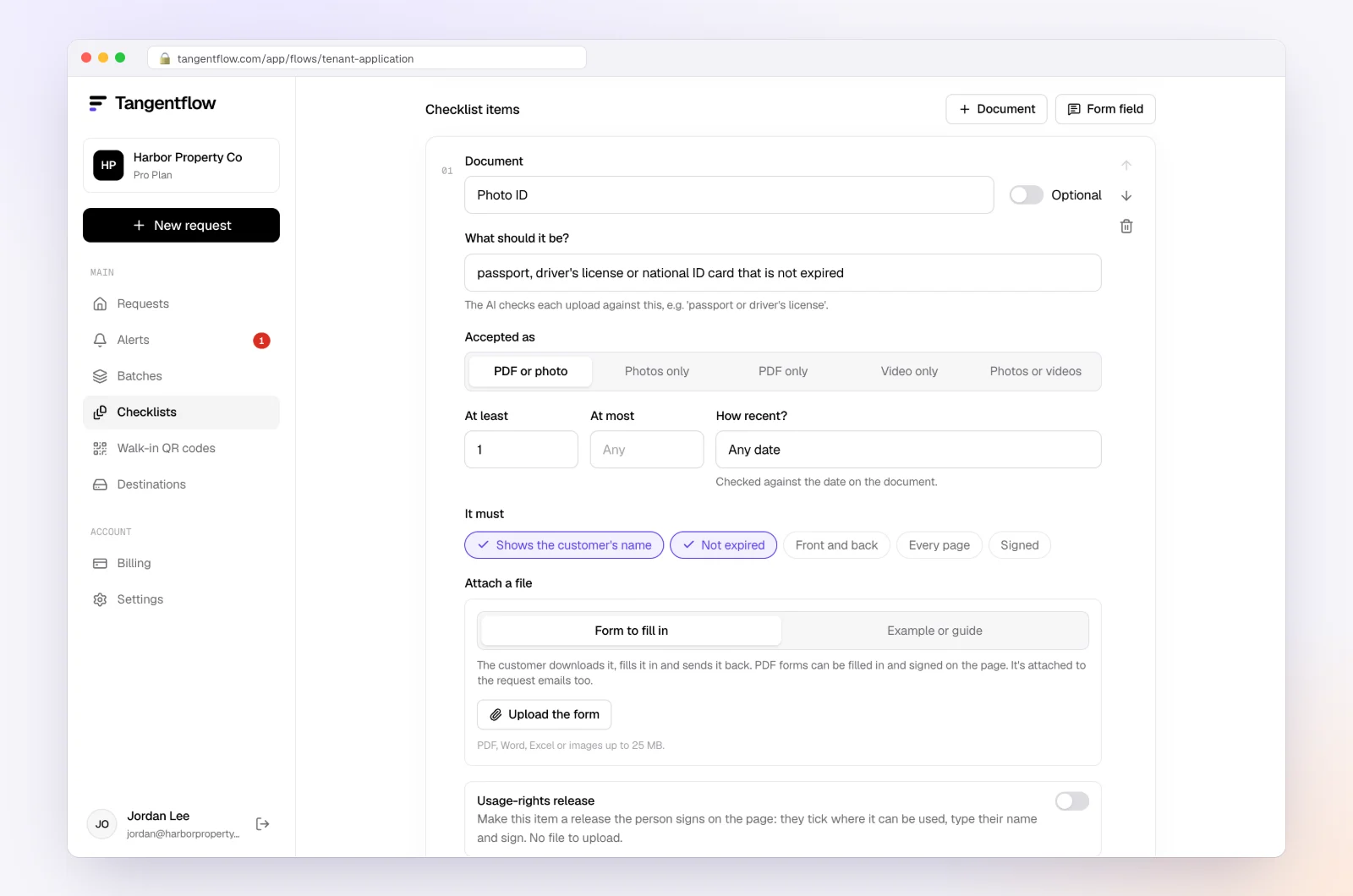
Go to Checklists and create one. Pick a template from "Browse templates," describe what you need in a sentence and let AI draft the items, or choose "Add your own items one by one."
Instead of a single "upload your files" question, give each item its own name. For file items, fill in "What should it be?" (for example "wide photo of the whole roof" or "most recent pay stub"), the minimum and maximum count, and a date rule like "dated in the last 3 months" or "not expired" where it matters. Add an "Example" and a short tip for anything people commonly get wrong.
If you were also using Google Forms for the questions, add them as "Form field" items: short text, yes/no, single choice, "Tick all that apply," date, dollar amount, address and more. Use "Only ask if…" to show an item only when an earlier answer calls for it.
Need a signed form back? Attach it to an item; see how to collect signed forms online.
2. Create a request for each customer
Go to Requests and click "New request." Choose the checklist, add a reference (like "14 Elm Street, Unit 2" or "Kim kitchen remodel"), the customer's name and email, and a needed-by date. Leave "Email the link" on to have the agent send the invitation from your business name.
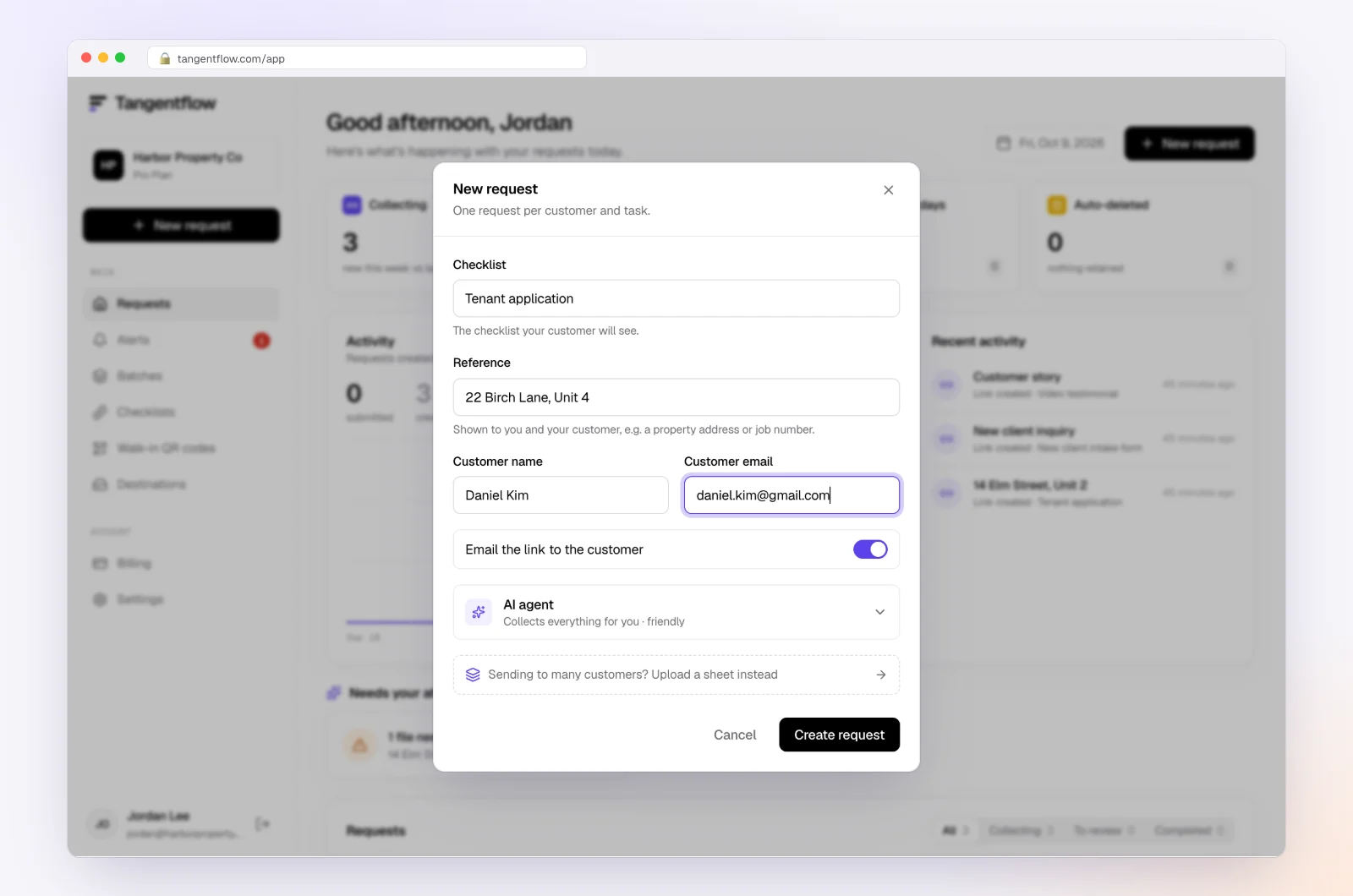
Prefer to send it yourself? Copy the link, or click "Show full screen" to show a QR code at your desk.
If the documents are sensitive, you can turn on "Require an email code" for the checklist. The customer then has to enter a 6-digit code sent to their email before the link opens, so a forwarded link alone isn't enough to get in.
3. The customer uploads with no account
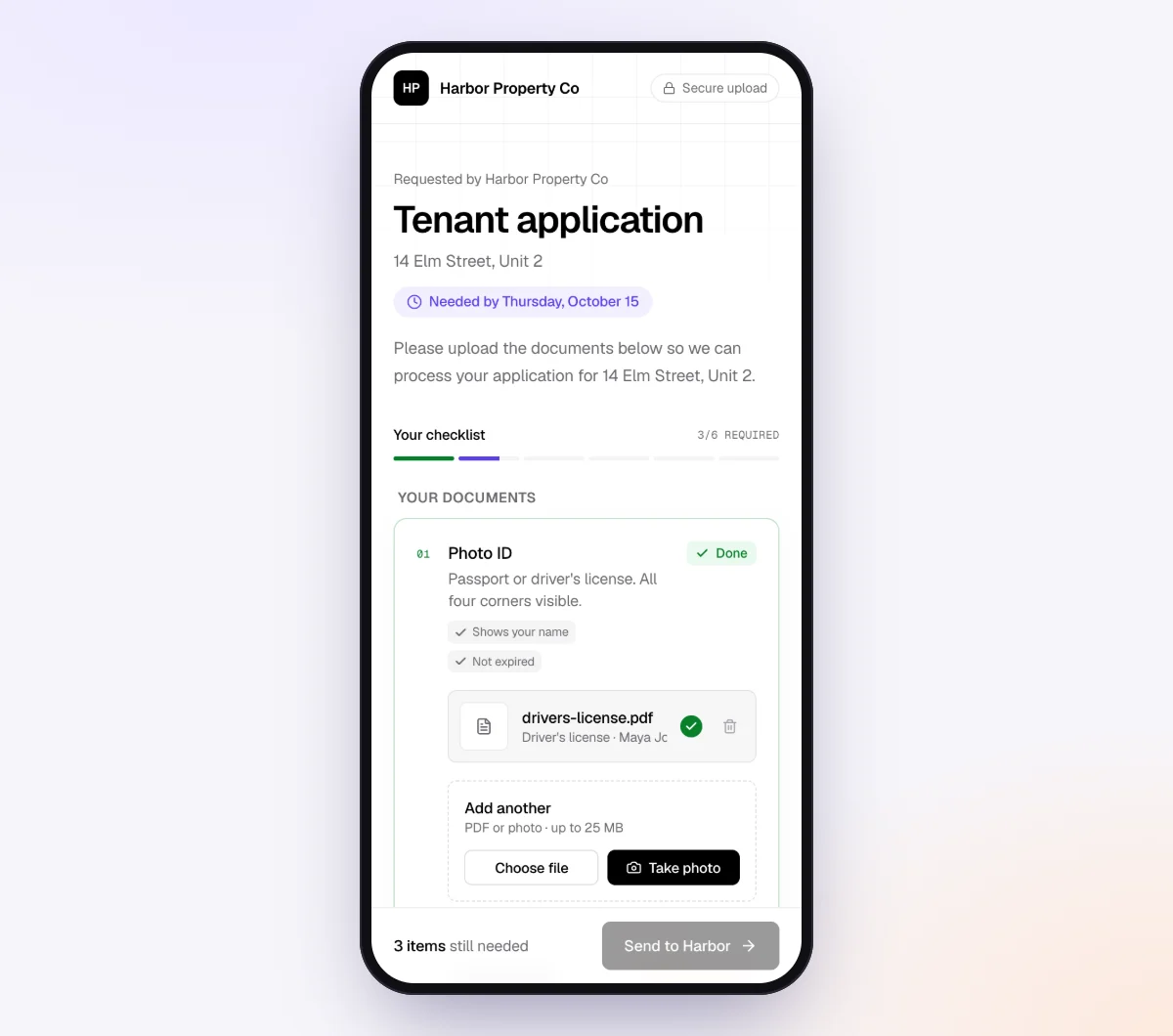
The customer opens the link on their phone or computer and sees exactly what you need, what's done and what's still missing. They upload straight from the camera or their files. No Google account, no sign-in screen, no "you need permission." If they leave halfway, they come back to the same link later.
4. Each file is checked on the spot
Every upload is checked in seconds by document checks: right document type, readable, recent enough, not expired, every page, the customer's name, signed, front and back, depending on what you set for the item. If something is off, the customer sees a friendly note and can upload a better file before they leave.
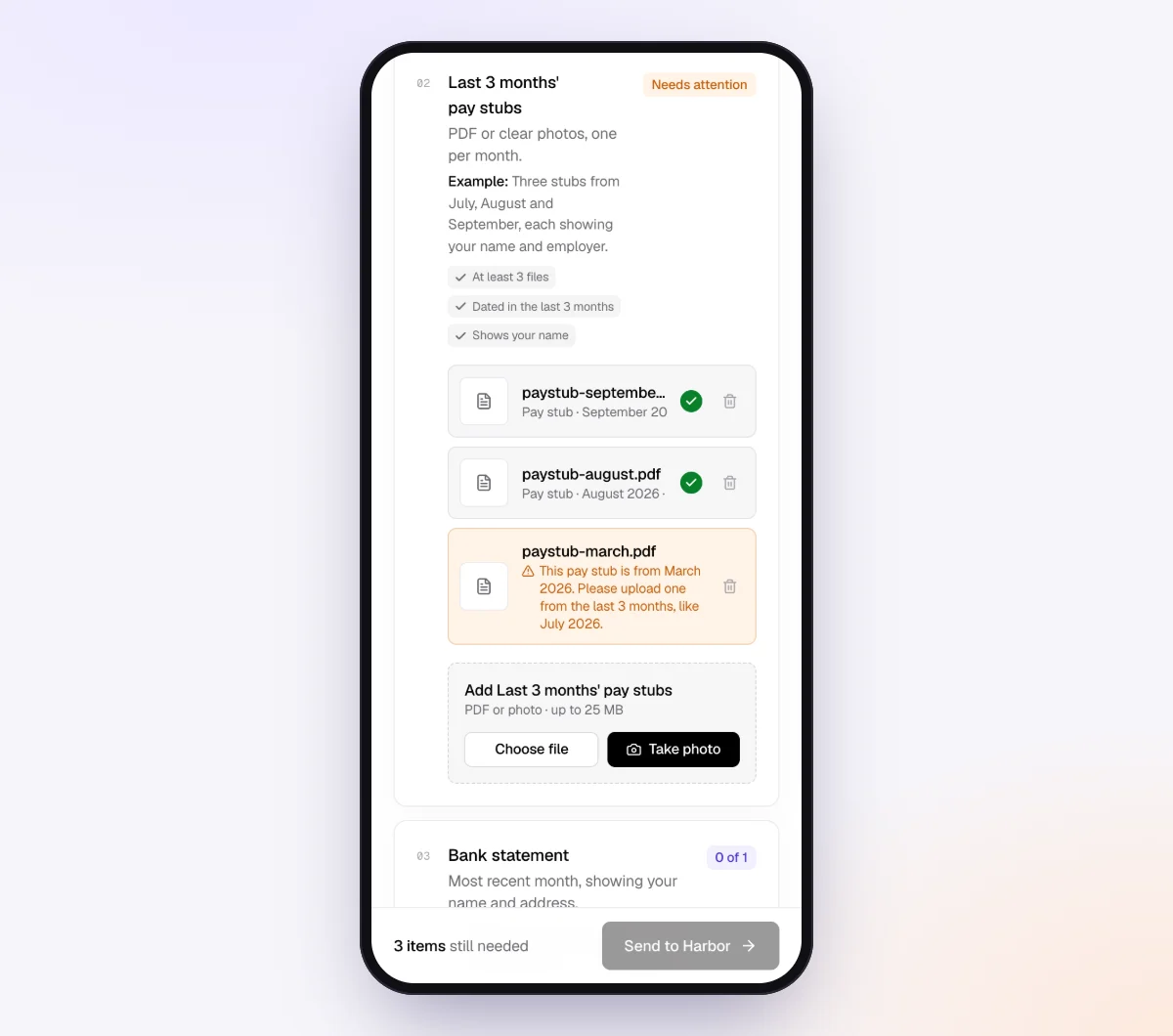
Google Forms, Dropbox and OneDrive accept whatever arrives, so you find the problem days later.
5. Review, then deliver to Google Drive
Your request page shows every file with its check result, what's still missing and an activity timeline. Use "Ask for changes" on any single file if you want it redone. Meanwhile, the agent reminds the customer about only what's still missing, paced to the needed-by date.
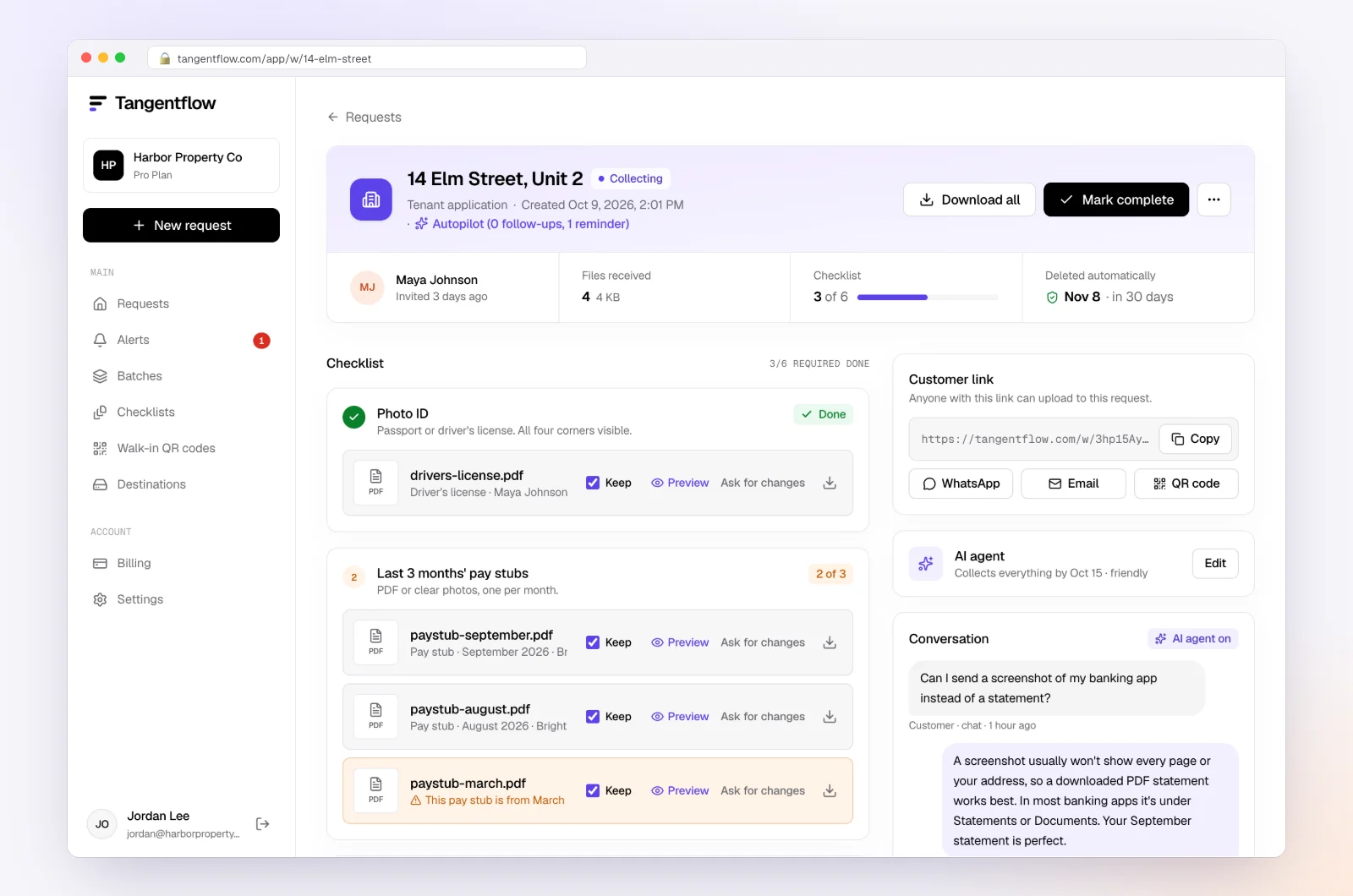
When everything is in, download an organized ZIP package, or on Pro, send it to Google Drive automatically. Tangentflow creates a "Tangentflow" folder in your Drive, then a folder for each finished request named after the customer, the checklist and the date, with a subfolder for each checklist item and a short summary file. It can only see the folders it creates in your Drive, nothing else.
So if the reason you picked Google Forms was "I want the files in Drive," you still get that. Your customers just never have to sign in to Google to get them there.
Mark the request complete and Tangentflow deletes its copies 24 hours later.
Google Forms vs. Tangentflow for collecting files
If you're deciding between keeping Google Forms and switching, here's the side-by-side.
| Google Forms file upload | Tangentflow | |
|---|---|---|
| Uploader needs a Google account | Yes | No |
| One link per customer | No, one form for everyone | Yes, a private link per request |
| Shows the customer what's still missing | No | Yes |
| Checks each file as it arrives | No | Yes, with document checks |
| Reminders about missing items | No | Yes, paced to the needed-by date |
| Answers questions from customers | No | Yes, by email and in the upload page chat |
| Files end up in Google Drive | Yes, the owner's Drive | Yes, on Pro, organized by request and item |
| Deletes its copies when you're done | No, files stay in Drive | Yes, 24 hours after completion or at the end of retention |
| Cost | Free | Free for one open request, $29/month Pro |
Google Forms is still the better tool for surveys and internal forms. Tangentflow is built for getting a specific set of files from specific customers.
Setups by business
These are illustrative starting points for businesses that commonly move off Google Forms for file collection.
| Business | What you used the Google Form for | Checklist items in Tangentflow | Learn more |
|---|---|---|---|
| Contractors and home services | Job photos before a quote | Wide photos of the area, close-ups, a short description, address | Home services |
| Restoration and roofing | Damage photos and the insurance letter | Minimum photo count, policy declarations page, signed work authorization | Insurance restoration |
| Property managers | Rental applications with ID and pay stubs | Photo ID (not expired), two recent pay stubs, bank statement, application answers | Property management |
| Accountants and tax preparers | Year-end document drop | W-2s or T4s, 1099s or T5s, receipts, prior-year return, yes/no questions | Accounting and tax |
| Staffing and HR | New-hire paperwork | ID, tax form, direct deposit form, certifications | Staffing onboarding |
| Marketing and UGC | Creator videos and signed releases | Video files, a signed usage release, handle and address | UGC creators |
For a deeper look at building good checklists, read our guide to collecting documents from clients.
Keeping uploaded files private
Whichever tool you pick, use one private link per customer rather than one folder or form everyone shares, and collect only what you need. Then plan for deletion: Google Forms and file request folders keep files until you remove them. Tangentflow deletes its copies 24 hours after you complete a request, or when retention ends (7 days on Free, 60 days on Pro), and you can delete immediately and get a deletion certificate. You can also switch the AI check off for items like IDs, so those files are never sent to the AI provider.
If a link goes to the wrong person, reset that customer's link from the request so the old one stops working. Once a customer has sent everything, their link no longer shows the files. More on our security page, and in our guide to secure ways to receive sensitive documents.
When something goes wrong
| Problem | Likely cause | Fix |
|---|---|---|
| Customer sees "Sign in to continue" on your Google Form | The form has a file upload question | No setting removes it. Remove the upload question or use an upload link that needs no account |
| File upload option is grayed out in Forms | Form is in a shared drive, or your admin turned on Data Loss Prevention or restricted uploads | Move the form to My Drive, or ask your Workspace admin |
| External customers get a permission error | Your organization or theirs blocks cross-domain Drive sharing | Ask your admin, or switch to a link that needs no account |
| OneDrive Request files is missing | Personal OneDrive account, or your admin hasn't allowed it | Use a work or school account, ask your admin, or use another option |
| Customer uploaded the wrong file to a Dropbox request | The request doesn't say what you need or check it | Name the files you need in the request description, or use a checklist with checks |
| Customer hasn't opened your Tangentflow link | Email went to spam or got buried | Ask them to check spam, or copy the link and text it yourself |
| Link went to the wrong person | Typo in the email address | Reset the customer's link from the request, fix the email and send it again |
Free and Pro, honestly
You can run a real request without paying anything.
| Free | Pro ($29/month) | |
|---|---|---|
| Open requests | 1 at a time | Unlimited |
| AI check on each file | Yes | Yes |
| AI autopilot (answers, reminders, follow-ups) | Your first request | Every request |
| Clients reply by email with attachments | No | Yes |
| Branding | Tangentflow badge | Your logo |
| Delivery to Google Drive or a webhook | No | Yes |
| Works with AI assistants (MCP) | No | Yes |
| File retention | 7 days | 60 days |
Both plans include unlimited checklists, QR codes and posters, ZIP export, AI summaries and email delivery. Pro is billed monthly with no contract, and you can cancel any time. Full details on the pricing page.
What Tangentflow does not do: SMS or text messages, a native mobile app, full legal e-signature certificates, identity verification, collecting payments, or permanent storage. If you need any of those, pair it with a tool that does.
Recap checklist
- Google Forms file upload always requires respondents to sign in to a Google account.
- Keep Google Forms if everyone uploading has a Google account, such as your own staff.
- For an occasional file from the public, use a Dropbox file request or OneDrive Request files on a work account.
- For question-heavy applications, use a form builder with uploads, and check its plan limits.
- Never share one Drive folder with every customer.
- For several documents from many customers, send one private link per customer with a named checklist.
- Check files as they arrive, set a needed-by date and remind about only what's missing.
- Deliver files to Google Drive or your system of record, then delete every other copy.
Frequently asked questions
Can you upload files to a Google Form without signing in?
No. Google's help page says respondents need to sign in to a Google account to answer a file upload question, and there is no setting to turn that off. If people without Google accounts need to send you files, use an upload link that doesn't require an account.
Why does my Google Form ask people to sign in?
If your form has a file upload question, Google requires a sign-in so each uploaded file is tied to an account and stored in your Drive. Forms can also require sign-in if you turned on settings like collecting verified emails or limiting people to one response. Remove the upload question and check those settings if you want an anonymous form.
Where do Google Forms file uploads go?
Into a new folder in the form owner's Google Drive, created for the form. The files use the owner's Drive storage, so large uploads can fill it up over time.
What is the best Google Forms file upload alternative?
It depends on what you collect. For an occasional file, a Dropbox file request or OneDrive Request files is free and needs no account from the uploader. For applications with many questions, a form builder like Jotform works. For several documents from many customers with a deadline, a collection tool like Tangentflow adds a checklist, file checks and reminders.
Do Dropbox file requests require the uploader to have an account?
No. Dropbox says anyone can send you a file through a file request whether they have a Dropbox account or not. The files count against your Dropbox storage, and per-file size limits depend on your plan, so check Dropbox's current plan page.
Can I still get files into Google Drive if customers don't have Google accounts?
Yes. Tangentflow Pro delivers each finished request to your Google Drive, in its own folder with a subfolder for each checklist item. Your customers upload through a private link with no account. Some form builders, such as Jotform, also offer a Google Drive integration.
Is there a free way to try Tangentflow?
Yes. The Free plan gives you one open request at a time, with the full AI agent on your first request. Customers never need an account. Try it free with a real customer.