Checklists
Shopify, Stripe and Amazon Reports Your Bookkeeper Needs (2026)
The reports your bookkeeper needs from Shopify, Stripe, PayPal, Amazon, Square and Etsy: exact names, where to find them, and why payouts must tie to deposits.
By Bibin MathewUpdated 19 min read
The short answer
Every month, an online seller should give their bookkeeper one payout report per platform that shows gross sales, fees, refunds, chargebacks and the net amount sent to the bank, plus a sales and sales tax summary for the same month. For Shopify that is the payout transactions export and the Finance summary; for Stripe, the Payout reconciliation report; for PayPal, the monthly statement; for Amazon, the Date Range Summary Report and settlement statements; for Square, the transfers export; for Etsy, the monthly statement. Where the platform offers view-only staff access, that is often easier than monthly exports, and high-volume sellers may be better served by a connector tool.
An online store's bank statement tells you almost nothing. You see "SHOPIFY $3,812.20" on a Tuesday and "AMAZON.COM SERVICES $9,140.06" every other week, and that is it. Behind each deposit sit dozens or thousands of sales, refunds, fees, chargebacks, sales tax and sometimes a reserve. Book only the deposit and revenue is understated, fees disappear and the sales tax liability is wrong.
So the question new ecommerce clients ask, and the one sellers type into search, is the same: what reports does my bookkeeper need from Shopify (or Stripe, or Amazon)? Most answers online cover one platform at a time. This guide puts them in one place.
It is for bookkeepers in the US and Canada who close books monthly for online sellers, and for sellers who want to send the right thing the first time: exact report names, where the client finds them, why each matters, and how to collect them.
Why a deposit is not a sale
Payment platforms pay out net. Between the customer's card and the client's bank, the platform takes its fees, returns money for refunds, pulls back disputed charges, may hold a reserve, and batches the rest into one transfer. The deposit is the last line of a calculation the bank never shows you.
An illustrative month for a small store on Shopify Payments:
| Line | Amount |
|---|---|
| Gross product sales | $18,400.00 |
| Shipping charged to customers | $1,150.00 |
| Sales tax collected | $920.00 |
| Refunds | −$1,260.00 |
| Processing fees | −$612.40 |
| Chargeback and dispute fee | −$200.00 |
| Net paid out for the month's activity | $18,397.60 |
| Less: payout still in transit at month-end | −$1,420.00 |
| Plus: last month's payout that landed this month | $980.00 |
| Shopify deposits on the bank statement | $17,957.60 |
If the books show $17,957.60 of sales, every line above is wrong: $612 of fees is missing from expenses, $920 of sales tax sits in income instead of a liability, and the refunds and chargeback are invisible.
Three more reasons the payout report matters:
- Form 1099-K reports gross, not net. Payment platforms and marketplaces report gross payments to the IRS on Form 1099-K when the threshold is met; the IRS confirmed in 2025 that the threshold for third party settlement organizations reverted to more than $20,000 and more than 200 transactions. Books built on deposits will not match that form. See the IRS Form 1099-K FAQs and confirm current rules with the client's tax preparer.
- Sales tax and GST/HST need the gross and tax figures. Marketplaces like Amazon and Etsy often collect and remit US sales tax for the seller under marketplace facilitator rules, while a Shopify or Stripe store usually collects its own. A deposit cannot tell you which.
- Timing. Payouts cross month-ends, and an Amazon settlement period rarely lines up with a calendar month. The payout report is how you book in-transit amounts correctly.
The universal monthly request for any online seller
Whatever the client sells through, ask for:
- One payout or settlement report per platform for the month, showing gross, fees, refunds, chargebacks and net for each payout.
- A sales summary, including discounts, shipping charged and returns.
- A sales tax report by state or province, if the platform produces one.
- The platform's own bills: subscription, app, advertising and shipping label charges billed separately from payouts.
- The PayPal statement, if the store accepts PayPal, even as "just a checkout button."
- Any loan or capital product statement (Shopify Capital, Stripe Capital, Amazon Lending and similar), since repayments often come out of payouts.
- A short note on new sales channels, new payment methods, large refund batches or open disputes.
This slots into the "Sales and income" part of a monthly bookkeeping checklist. Bank and card statements still come separately; see getting bank statements from clients.
Shopify: what reports does my bookkeeper need?
For a store using Shopify Payments, ask for three things each month.
1. Payout transactions export
This is the core reconciliation report: every transaction inside each payout, with its amount, fee and net.
Where the client finds it: In the Shopify admin, go to Finance > Payouts and click a payout date. The overview shows the total, status, bank account, transfer reference number, and a breakdown of charges, refunds, adjustments and reserves. To export that payout, click the Export icon and choose "Export payout transactions."
How to export the Shopify payouts report for a whole month: go to Settings > Payments, click "View payouts," then "View transactions," then "Export." Pick the date range and CSV type and click "Export balance transactions." Shopify emails the CSV to the person who exported it and to the store owner.
2. Finance summary and sales reports
Payouts only cover Shopify Payments. For total sales, ask for the Finance summary report under Analytics > Reports, in the Finances category. Useful companions from the same list:
- "Total sales breakdown": gross sales, discounts, returns, net sales, shipping and taxes.
- "Net payments by gateway": how much came through Shopify Payments vs PayPal, gift cards or manual methods, which tells you which other statements you need.
- "United States sales tax report" or "Canada sales tax report": tax by state or province.
3. Shopify bills
The subscription and app charges are billed to the store separately, not netted from payouts. Ask for the month's bills from the store's billing settings.
Staff access instead of exports
In July 2026 Shopify added a "View payouts" staff permission, assigned under Settings > Users > Roles > Permissions, alongside permissions for payment settings, disputes and tax documents. A bookkeeper with a staff account limited to payouts and reports can export what they need without asking. The number of staff accounts depends on the client's plan.
Stripe payout reconciliation report for your bookkeeper
For businesses that take payments through Stripe directly (subscriptions, invoices, a custom checkout), ask for the Payout reconciliation report.
Where the client finds it: In the Stripe Dashboard, go to Reports > Payout reconciliation and select a date range covering the month. The report has a Balance summary (starting and ending Stripe balance), the Payout reconciliation section (each automatic payout broken down into charges, refunds, fees, disputes and other categories), Failed payouts if any, and Ending balance reconciliation (activity not yet paid out at the end date).
What to download: Click Download on a section and choose Summary (totals) or Itemized (every transaction behind them). CSV is available to all accounts; some accounts also see a PDF option.
Two details trip bookkeepers up:
- It covers automatic payouts. On manual payouts, Stripe points to the Balance report instead, which treats the Stripe balance like a bank account.
- Dates follow the estimated arrival date, not the day the bank posted the deposit, and Stripe says it cannot identify which transactions are in an instant payout.
Team access: Stripe's "View Only" role can view payments, balances and payouts and create, view and download financial reports, without refunding or moving money. There is also an "Accountant" role aimed at Stripe Revenue Recognition users. Avoid "Analyst" for a bookkeeper: it can refund payments and pay out the balance.
PayPal activity report for your accountant
PayPal works more like a bank account than a payout processor. Money sits in a PayPal balance until it moves to the bank, so treat it as its own account and reconcile it with a statement.
Monthly statement: The client goes to Reports > Statements > Monthly, clicks "Request" next to the month, then "Download." PayPal offers PDF or CSV.
Activity download: For transaction detail, the client downloads activity from their account history (labeled Activity download under Reports in many business accounts), choosing a custom date range and PDF, CSV, QuickBooks, Quicken or TAB format. PayPal allows up to 12 months per download.
Transfers to the bank should match bank deposits; watch for currency conversions, holds, and purchases paid from the PayPal balance, which are often personal.
User access: Business accounts can add users under Account Settings > Manage users with individual permissions. Give access to reports and activity only, never payments or withdrawals.
Amazon settlement report for your bookkeeper
If a client asks what to give their accountant if they sell on Amazon, the answer is two reports from Seller Central.
1. Date Range Reports, for the month. Open the Payments menu and choose Reports Repository. Under Date Range Reports, pick the month and request the Summary Report (PDF), an overview of income, expenses, taxes and transfers. The Transaction Report (CSV) adds every transaction. These reports use the date each transaction posted to the account, not the order or ship date, and can take a few hours to generate.
2. Settlement statements, for each deposit. Amazon pays out in settlement periods that often straddle two months. The settlement report shows what made up each deposit. The client finds them under Payments > All Statements, with flat file downloads for each period. Older periods may need to be requested.
Watch for the many fee types, sales tax Amazon collected as marketplace facilitator, reimbursements and reserves released later.
User access: The account holder can add users under Settings > User Permissions and set each area to "View," "View & Edit" or "Admin." "View" on payments and reports is enough for a bookkeeper.
Square payout report
Square calls payouts transfers. In the Square Dashboard, the client goes to Banking, picks a location if there is more than one, and clicks "View all transfers." Each transfer lists the payments included, and Export downloads transaction details as a CSV (Dashboard only, not the point of sale app).
Ask for the Sales summary report for the month too: gross sales, discounts, returns, taxes and tips. Square lets the client print reports from the Dashboard, which also means saving as a PDF.
Team access: Square's help says team members with the balance permission can view transfer reporting, and the reports permission covers sales reporting.
Etsy payment account report
Etsy deducts its fees, and often shipping labels and ads, before depositing the rest, so the monthly statement is the reconciliation document. In Shop Manager, the client goes to Finances > Monthly statements (the Payment account page is under Finances too), chooses "View all monthly statements," picks the month and selects "Generate CSV." Etsy emails a download link when it is ready.
The statement covers sales, refunds, Etsy fees, shipping labels, ads, sales tax collected by Etsy and deposits. Etsy began offering shared shop access in 2026, but as announced, team members cannot see finances, so a monthly export from the owner is still the practical route.
Every platform on one page
| Platform | Report to request | Where the client finds it (as of October 2026) | Format | Read-only access option |
|---|---|---|---|---|
| Shopify | Payout transactions, Finance summary | Settings > Payments > View payouts > View transactions > Export; Analytics > Reports | CSV | Staff with "View payouts" |
| Stripe | Payout reconciliation | Reports > Payout reconciliation | CSV, PDF on some accounts | "View Only" role |
| PayPal | Monthly statement, activity download | Reports > Statements > Monthly | PDF, CSV and more | Users with reports and activity only |
| Amazon | Date Range Summary Report, settlement statements | Payments > Reports Repository; Payments > All Statements | PDF summary, CSV, flat files | User Permissions, "View" |
| Square | Transfers export, Sales summary | Banking > View all transfers > Export | CSV, printable summary | Balance and reports permissions |
| Etsy | Monthly statement | Shop Manager > Finances > Monthly statements | CSV | None for finances |
Exports, view-only access or a connector tool?
| Approach | Best for | Monthly effort | What can go wrong |
|---|---|---|---|
| Client exports and sends reports | Low-volume sellers; platforms without finance roles (Etsy) | Client does it monthly | Wrong date range, wrong report, forgotten platforms |
| Bookkeeper has view-only access | Shopify, Stripe, Amazon, PayPal and Square clients | You pull reports yourself | Roles set too broad; access lost when the client changes settings |
| Connector tool (A2X, LinkMyBooks, Synder and similar) | Hundreds or thousands of orders a month, several channels | Review and post summaries | Subscription cost per client; a mapping error repeats every month |
View-only access is the cleaner long-term answer where it exists. It is not password sharing: never accept a client's own login. Ask them to invite you with your own account and the narrowest role that can download reports.
Connector tools pull payout and settlement data automatically and post summarized entries to QuickBooks Online or Xero that match each deposit. For a high-volume Amazon seller that is often worth the subscription. They still need someone to review the mapping, and they do not replace bank statements, platform bills or sales tax filings.
Request wording you can copy
Clients do not know what a "payout report" is, but they can follow a menu, so put the path in the request.
Subject: [Month] bookkeeping: your store reports

Hi [First name],

To close [Month] for [Business name], please send these by [day, date]:

- Shopify payout transactions for [Month]: Settings > Payments >
  View payouts > View transactions > Export
- PayPal monthly statement (PDF): Reports > Statements > Monthly
- Amazon Summary Report (PDF): Payments > Reports Repository

If you'd rather not do this every month, you can add me as a user with
view-only access instead. Reply and I'll send the steps.

Thanks,
[Your name]
For reminders that list only what is still missing, see our document request email templates.
Collecting store reports in Tangentflow, step by step
Tangentflow covers the "client sends reports" route: one private link per client per month, a checklist naming each report, and an AI collection agent that reminds and answers questions. It fits bookkeepers who already send statements and receipts with the "Monthly bookkeeping" template and want store reports in the same request.
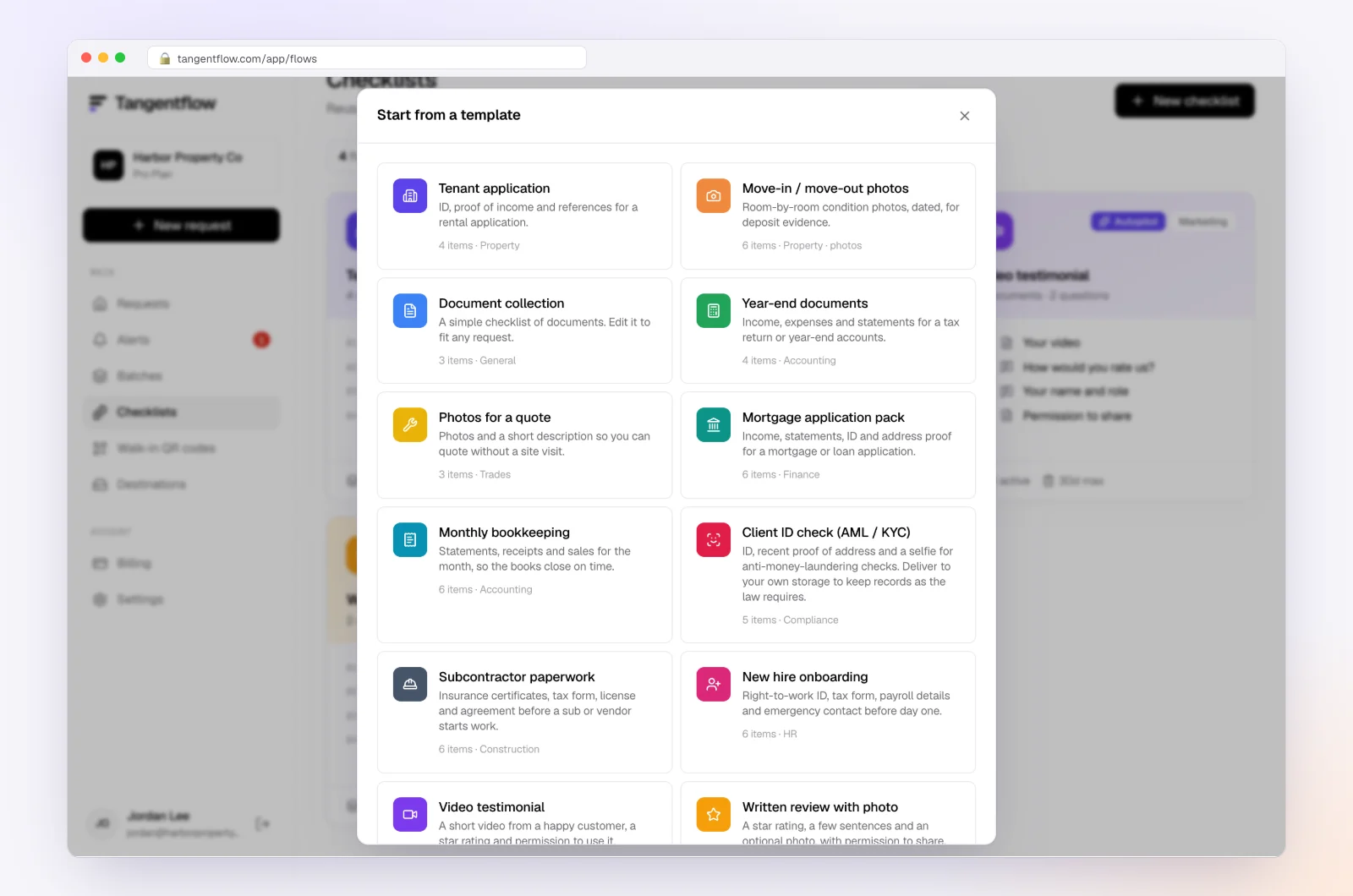
1. Start from the "Monthly bookkeeping" template
Open "Checklists," choose "Browse templates" and pick "Monthly bookkeeping." It includes "Bank statements for the month," "Credit card statements," "Receipts and bills you paid," "Sales or invoices you issued," "Payroll report" and "Anything unusual this month?" Keep a copy for your ecommerce clients.
2. Add one item per platform
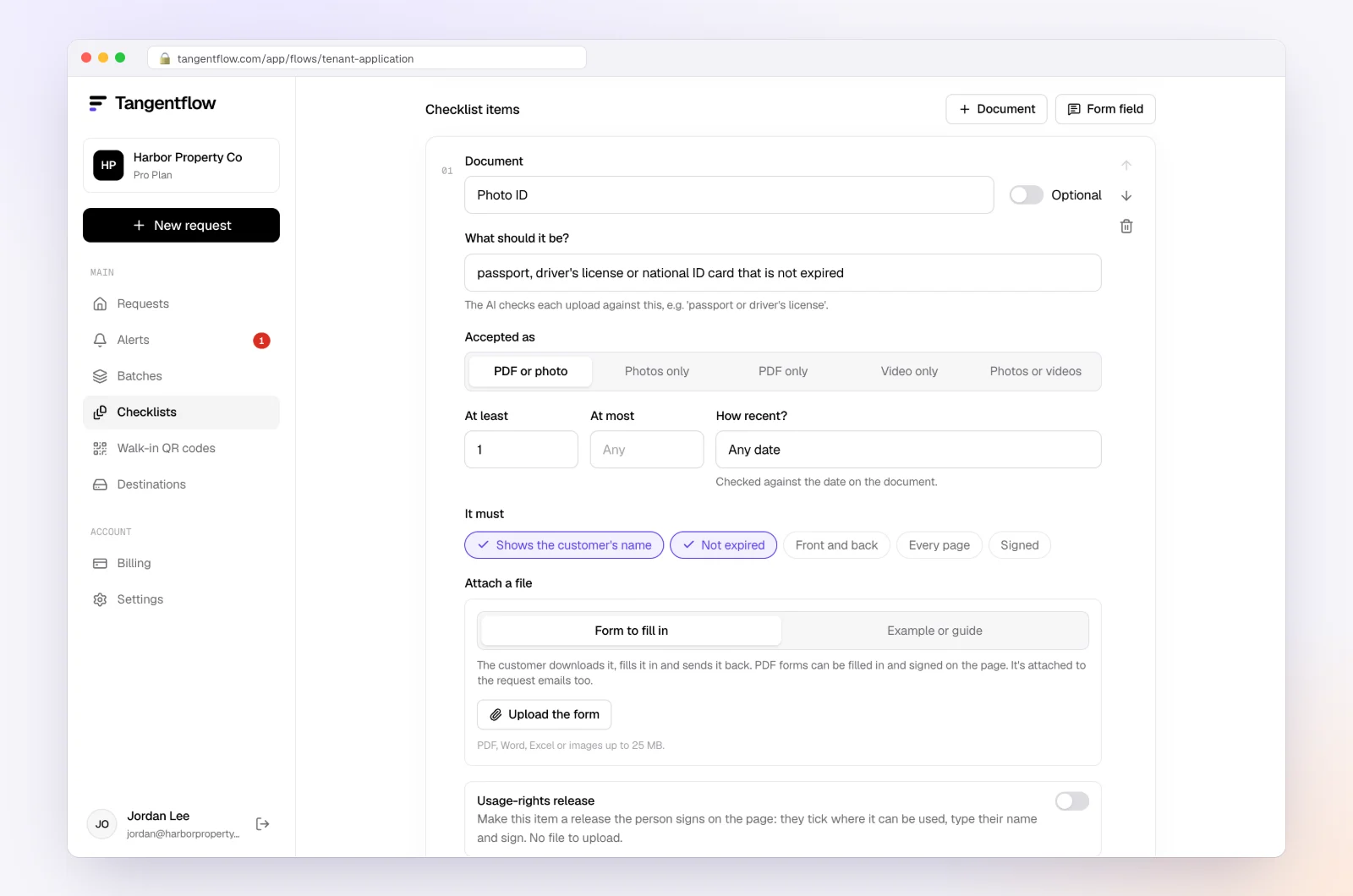
Add a file item per platform, named the way the client sees it: "Amazon Summary Report (PDF) for last month," "PayPal monthly statement." In the checklist editor:
- Set "What should it be?" to the report, for example "Amazon Seller Central Date Range Summary Report for the previous month."
- Set "Accepted as" to "PDF only."
- Mark platform items optional, so a client who does not sell on Amazon is not stuck.
- Put the menu path in the hint: "Payments > Reports Repository."
- Add a yes/no form field, "Did you start selling somewhere new this month?", and use "Only ask if…" to show a follow-up item when the answer is yes.
3. Send it to every ecommerce client at once
Open "Batches," choose "Send to many customers," pick the checklist and upload or paste your client list. A column such as "Sells on: Shopify, Amazon" becomes context the agent uses when clients ask what applies to them. Schedule the send up to 30 days ahead and turn on "Repeat every month" so the same clients get a new request on the same day each month, with the same gap to the needed-by date, until you stop it from the batch page. Batches are part of Pro, up to 100 clients per sheet; see bulk requests.
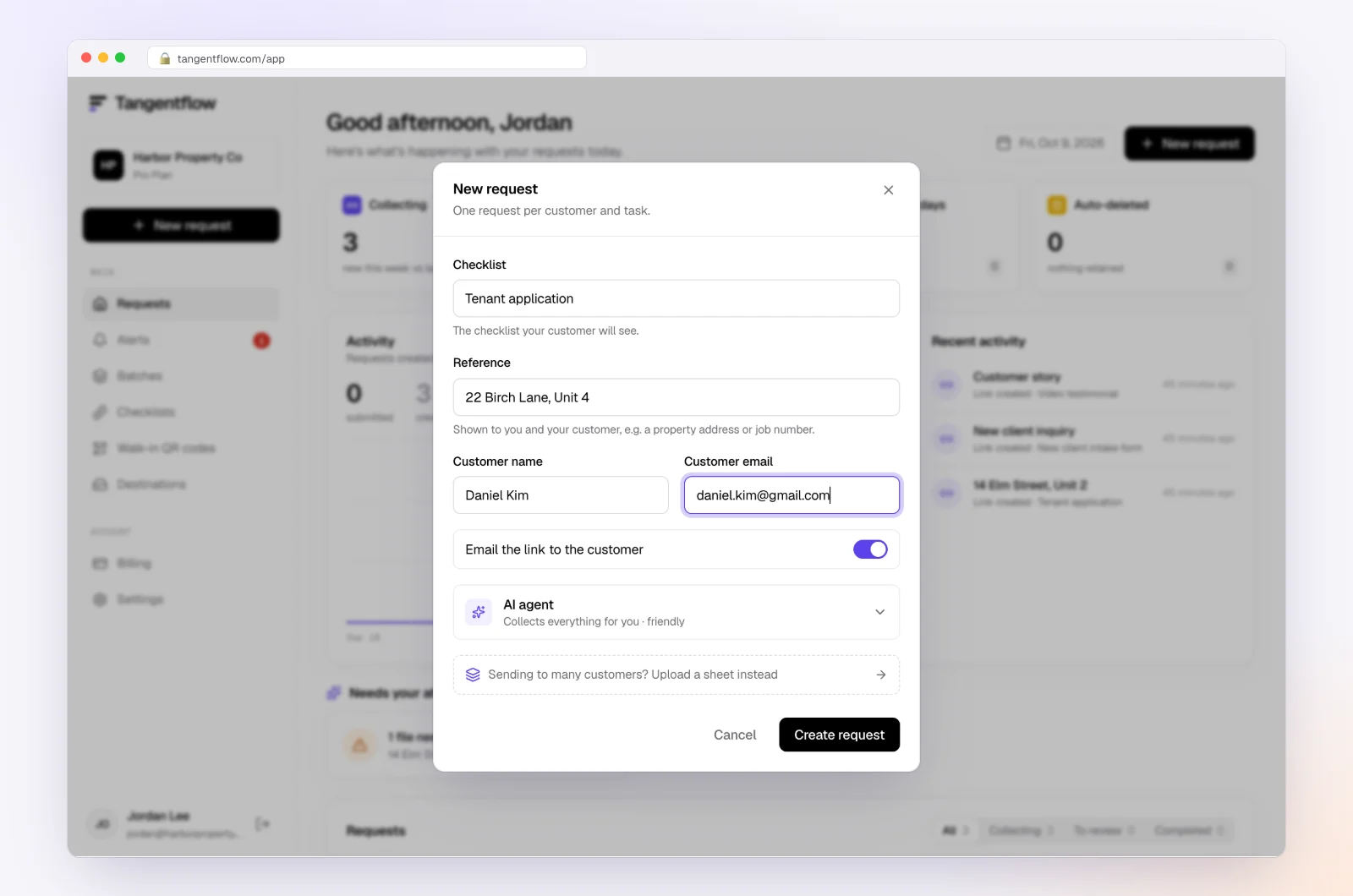
For one new client, use "New request," choose the checklist and add a reference such as "Maple & Co, September 2026."
4. Wrong reports are caught at upload
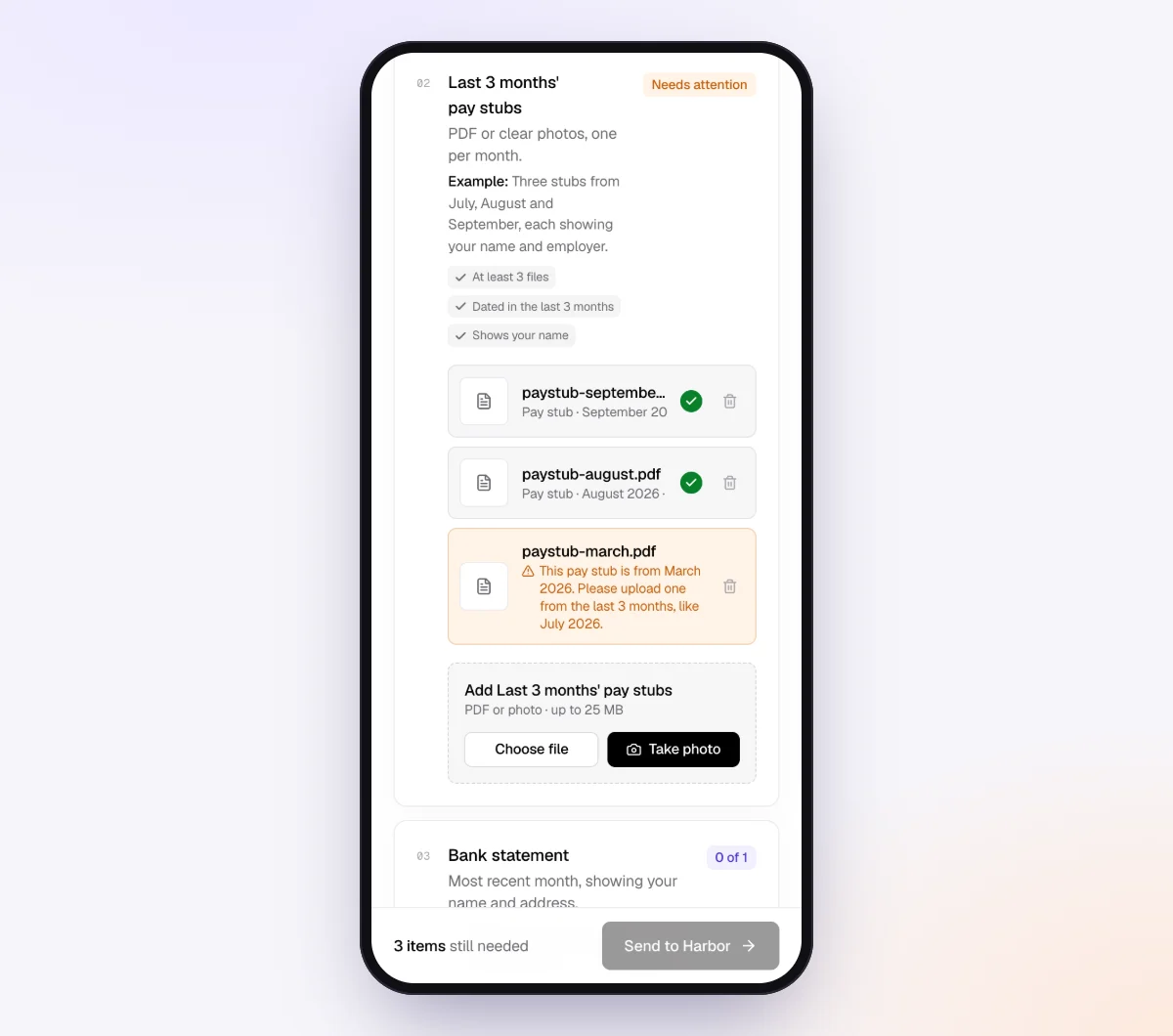
Each upload is checked in seconds by document checks against what the item should be and how recent it is. If a client uploads a bank statement where the Amazon summary belongs, or last month's report again, they see a note explaining what to fix before they leave. The check reads the document; it does not reconcile the numbers. That is still your job.
5. The agent answers "which report?" questions
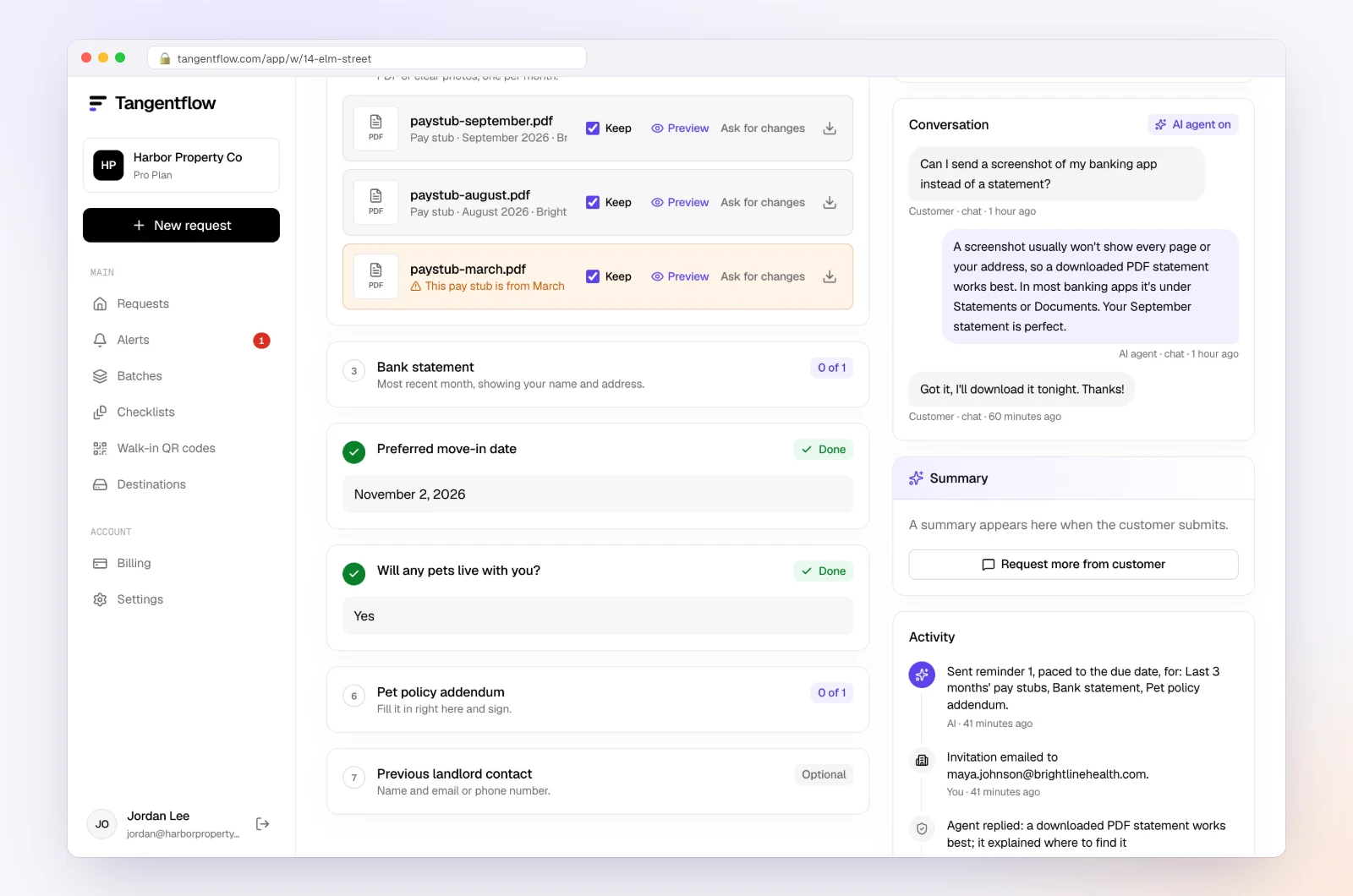
Clients reply with questions like "Do you need PayPal if it's connected to Shopify?" The agent answers from your checklist and private notes, or hands off to you if the question is outside them. Reminders are paced to the needed-by date and list only what is still missing. When everything is in, download an organized ZIP or, on Pro, deliver to Google Drive or a webhook.
Setups by type of seller
| Seller type | Request monthly | Better via access or a connector |
|---|---|---|
| Shopify-only store | Payout transactions, Finance summary, Shopify bills | Staff account with "View payouts" |
| Shopify plus PayPal | Above, plus PayPal monthly statement (PDF) | PayPal user with reports access |
| Amazon FBA seller | Date Range Summary Report (PDF), settlement statements | Connector for settlement detail |
| Etsy maker | Monthly statement, label and ad charges | Export only |
| Service business on Stripe | Payout reconciliation (Summary), Stripe invoices | "View Only" role |
| Retail shop on Square | Sales summary, transfers, cash sales count | Balance and reports permissions |
| Multi-channel seller | One payout report per platform | Connector tool |
Add year-end items such as the inventory count from our year-end bookkeeping checklist, and turn unclear payout lines into questions using our uncategorized transactions guide. More on how Tangentflow fits a bookkeeping practice on the bookkeepers page.
When something goes wrong
| Problem | Likely cause | Fix |
|---|---|---|
| Payout total doesn't match the bank | Payout in transit at month-end, or wrong date basis | Match payout by payout and book in-transit amounts; for Stripe, use estimated arrival dates |
| Client sends an order export | "Export" under Orders looked right | Put the exact menu path in the item hint |
| Amazon deposit doesn't match the summary | Settlement periods cross month-end | Use settlements for deposits and the Date Range Summary for monthly income |
| PayPal shows personal purchases | Client pays from the PayPal balance | Ask in your transaction questions; record owner draws where appropriate |
| Fees look too low | Subscription, app or ad charges billed separately | Request the platform's bills too |
| A new sales channel appears | Client added a marketplace without telling you | Ask a monthly yes/no question about new platforms |
Check "Alerts" in Tangentflow for handoffs and missed dates. For clients who are late every month, our late document policy guide has engagement letter wording.
Free and Pro, honestly
You can run a real request without paying anything.
| Free | Pro ($29/month) | |
|---|---|---|
| Open requests | 1 at a time | Unlimited |
| AI check on each file | Yes | Yes |
| AI autopilot (answers, reminders, follow-ups) | Your first request | Every request |
| Send to many clients at once (Batches) | No | Yes |
| Clients reply by email with attachments | No | Yes |
| Branding | Tangentflow badge | Your logo |
| Delivery to Google Drive or a webhook | No | Yes |
| Works with AI assistants (MCP) | No | Yes |
| File retention | 7 days | 60 days |
Both plans include unlimited checklists, QR codes and posters, ZIP export, AI summaries and email delivery. Pro is billed monthly with no contract, and you can cancel any time. Full details on the pricing page.
What Tangentflow does not do: SMS or text messages, a native mobile app, full legal e-signature certificates, identity verification, collecting payments, or permanent storage. If you need any of those, pair it with a tool that does. It also does not connect to Shopify, Stripe, Amazon or other sales platforms, accept CSV uploads from clients, or post entries to your bookkeeping software.
The ecommerce reports checklist
- List every platform each client sells or takes payments through, and ask monthly if anything changed.
- Request one payout or settlement report per platform showing gross, fees, refunds, chargebacks and net.
- Add a sales summary and sales tax report for the same month.
- Request the platforms' own bills for subscriptions, apps, ads and labels.
- Treat PayPal as its own account and reconcile it to the monthly statement.
- Use view-only access where offered, with the narrowest role, and never a client's password.
- Put exact report names and menu paths in the request.
- Reconcile payout by payout to bank deposits and book in-transit amounts at month-end.
- Consider a connector tool for high-volume or multi-channel clients.
Frequently asked questions
What reports does my bookkeeper need from Shopify?
At minimum, the Shopify Payments payout transactions for the month and the Finance summary report. The payout export shows the charges, refunds, fees and adjustments behind each deposit; the Finance summary shows gross sales, discounts, returns, shipping and taxes. Add the month's Shopify bills and, if the store takes PayPal, the PayPal statement.
How do I export the Shopify payouts report?
As of October 2026, go to Settings > Payments, click "View payouts," then "View transactions," then "Export," choose the date range and CSV type, and click "Export balance transactions." Shopify emails the file. For a single payout, open it from Finance > Payouts and choose "Export payout transactions."
Which Stripe report should I give my bookkeeper?
The Payout reconciliation report for the month, under Reports in the Stripe Dashboard. Send the Summary for totals and the Itemized download for detail. If the account uses manual payouts, Stripe recommends the Balance report instead.
What should I give my accountant if I sell on Amazon?
The Date Range Summary Report (PDF) for each month from Payments > Reports Repository, and the settlement statements from Payments > All Statements, which show what made up each deposit. Many accountants also ask for "View" access under Settings > User Permissions so they can pull reports themselves.
Is the PayPal activity report or the monthly statement better for my accountant?
Send the monthly statement every month, since it shows the balance and transfers to the bank. The activity download adds transaction detail in PDF, CSV or QuickBooks format, which helps when there are many transactions to categorize.
Should I give my bookkeeper my Shopify or Amazon login?
No. Shopify, Stripe, Amazon, PayPal and Square all let the owner invite a separate user with limited permissions. Give your bookkeeper their own login with view or reporting access only, so you can remove it later and nobody can move money.
Do I need A2X, LinkMyBooks or Synder?
Not always. For a store with a modest number of orders, monthly reports and a careful reconciliation are usually enough. For high-volume or multi-channel sellers, a connector that posts payout summaries to QuickBooks Online or Xero can save hours, though it adds a subscription and still needs review.
Can I collect these reports in Tangentflow?
Yes, for reports that come as PDFs, such as Amazon's Summary Report and PayPal's monthly statement, in the same monthly request as bank statements and receipts. Client uploads accept PDFs and photos, not CSV files, so pull CSV detail through view-only access or a connector.