Guides
Why Clients Don't Use Your Client Portal (and What Works) (2026)
Why clients won't use the client portal you pay for: the login problem vs. the request problem, when a portal is right, and a no-login option that works.
By Bibin MathewUpdated 19 min read
The short answer
Usually it is not the clients and not quite the tool. Clients skip portals for two separate reasons: the login (an account and password for something they open a few times a year) and the request (a vague ask with no deadline and no reminders). Fix the request first with a specific checklist, a real date and reminders that list only what is missing. Then, for routine document requests, send a private link that opens with no account, and add an emailed code when the documents are sensitive.
You pay for a client portal, you announced it, and clients still email you attachments. Here is the short answer: it is usually not the clients, and it is only partly the tool. Clients skip portals for two different reasons that tend to get lumped together. One is the login: an account and a password for something they open a few times a year. The other is the request: a vague ask with no deadline and no reminders. A portal fixes neither on its own. Fix the request first, then remove the login for routine document requests, and keep the portal for what it does well.
This guide is for bookkeepers, accountants and other small firms who collect documents every month or every year and are tired of digging files out of email threads, whatever they use today.
Is it the clients or the portal?
Most advice treats "clients won't use the portal" as one problem with one fix: train them harder. There are really two problems, and they need different fixes.
| The login problem | The request problem | |
|---|---|---|
| What the client experiences | "I have to sign in? What was my password?" | "What exactly do you need, and by when?" |
| What they do instead | Reply to your email with attachments | Nothing, until you call |
| Typical clients | Annual or quarterly clients, older clients, busy owners | Everyone, including tech-savvy clients |
| What fixes it | Fewer logins: a link that opens without an account | A specific checklist, a real date, reminders that list what is missing |
| What does not fix it | Another training video | A nicer portal |
The two problems hide each other. A client who logs in fine may still stall for three weeks because "send your year-end stuff" is not a task anyone can finish.
Why clients won't use the client portal: the login problem
A login makes sense when people visit often, so the password stays fresh or lives in a password manager. A client who sends you documents once a month, or once a year at tax time, is in a very different spot.
Clients forget the portal password
This is the most common complaint, and it is not a character flaw. Think about what the client has to remember:
- That you have a portal at all, and what it is called.
- Which email address they signed up with.
- A password created months ago, under a different set of rules than every other site they use.
- Where the upload button is once they get in.
Every reset is a detour, and by the time they are in, the moment has passed. A client who would photograph a receipt in the parking lot will not reset a password to do it. So they reply to your email with the attachment, because email is already open.
Other login friction you might not see
- App downloads when they only wanted to send one file.
- Multiple logins. Their payroll provider, their bank and their insurance company each have a portal too. Yours is one more.
None of this is a reason to drop security. It is a reason to put the security where it matters, which we cover in the section on no-login links below.
The request problem: why logged-in clients still stall
Remove the login entirely and some clients will still be late. That is the request problem, and it shows up in email, shared folders and portals alike.
- The ask is vague. "Please upload your documents for October" leaves the client guessing which accounts, which receipts and what format.
- There is no date. "When you get a chance" means never. A real calendar date with a reason gets action.
- Nothing tells them what is still missing. A portal with an empty folder does not say "we have your checking statement but not your credit card."
- Reminders depend on you. You follow up when you remember, which is usually when the close is already late.
- Problems are found late. A blurry receipt or a statement missing page 3 is discovered a week later, and the conversation starts over.
- Questions have nowhere to go. "Do you need the PayPal statement too?" If the only option is a phone call, many clients wait.
A portal can carry a good request, but it does not write one for you. Faced with a blank upload area, many clients give up and email you a pile of files instead.
For the content of a good monthly request, see our monthly bookkeeping checklist. For pacing follow-ups, see the client reminder schedule.
Which problem do you have? A quick diagnosis
Look at your last ten late or off-portal requests and match them to this table.
| What you see | Likely problem | Fix to try first |
|---|---|---|
| Client replies "I couldn't get in, here are the files" | Login | Send a link that opens without an account |
| Password reset requests cluster around your deadlines | Login | Same, or turn on passwordless sign-in if your portal has it |
| Client uploaded, but the wrong month or only page 1 | Request | Name each item, add "every page" and a date rule |
| Client never opened anything | Request (or spam folder) | A specific subject line, a real date, a reminder schedule |
| Client sends half, then goes quiet | Request | Reminders that list only what is still missing |
| Client asks "which statements?" by phone | Request | Add a hint to each item, answer once, reuse it |
If most rows point to "request," a better portal will not help. If most point to "login," better reminder copy will not fully fix it. Most firms have both.
Client portal vs. email for documents
Here is an honest comparison of the three approaches most small firms end up mixing.
| Email attachments | Client portal (login) | Private link, no login | |
|---|---|---|---|
| Client effort to start | None | Account, password, often 2FA | Tap a link |
| Works for clients who visit rarely | Yes | Often poorly | Yes |
| Shows what is still missing | No | Sometimes, if the request is set up that way | Yes, if the tool has a checklist |
| Ongoing two-way messaging | Yes, but scattered | Usually strong | Limited to the request |
| E-signatures, invoices, payments | No | Often included | Varies, usually not payments |
| Files organized for you | No | Yes | Yes |
| Security of stored files | Weak, copies in inboxes | Usually good | Good if links are private and files are deleted |
| Typical cost | Free | Often bundled with practice software, per seat | Free to low |
Email is fine for one file from a client you talk to every week. It breaks down at six items from forty clients: nobody can see what is missing, and sensitive files sit in inboxes for years. Our post on secure ways to receive sensitive documents covers the risk.
A portal is the strongest choice when clients come back often and do more than upload: messages, signatures, invoices.
A no-login link fits the routine, repeated ask: this month's statements, this year's tax slips, one missing receipt. The client taps, uploads and leaves.
When a full client portal is the right tool
Keep your portal, and steer clients into it, when:
- You need ongoing messaging in one secure thread, not one request at a time.
- Clients sign engagement letters, returns or authorizations there, with the signing records your practice needs.
- You bill and collect payment through it, and clients already open it to pay.
- Clients log in often anyway, for reports, dashboards or shared files they read every month.
- Your workflow lives in that software: tasks, due dates and staff assignments are tied to portal activity.
There the login pays for itself, because the client gets something every visit. The friction shows up when the portal is used for the one thing that does not need a login: "please send me these five files."
Many firms end up with a split that works: the portal for relationship work, a no-login link for document requests. The files still end up in the same place once you download or deliver them. If you are weighing specific tools, our comparison of document collection software covers that side; this post stays on adoption and client behavior.
Magic link and no-login client upload: how it works
A no-login link (sometimes called a magic link) is a private web address that only opens one client's request. There is no account to create and no password to remember. The link itself is the key.
What a good one includes:
- An unguessable link per request, never a shared folder link that works for everyone.
- The checklist on the page, with what is done and what is still missing.
- Phone-first uploads from the camera or files.
- The same link all the way through, so a client can upload two items today and the rest on Saturday.
- A clear end, so the link does not stay a window into the files forever.
Is a no-login link secure enough?
The honest answer is: it depends on what you are collecting and how the link is protected. A link with no extra step means anyone who has the link can open the request. For receipts and photos, that is usually acceptable. For tax slips, bank statements and IDs, you want one more step.
That step is an emailed code. Before the link opens, the client enters a short code sent to their email address. A forwarded or leaked link is no longer enough on its own, and there is still no password for the client to forget. It adds about the same effort as a two-factor prompt, but only for the requests that need it.
Two more controls matter as much as the code:
- A way to cut off a link that went to the wrong person, so the old link stops working immediately.
- Files that disappear from the client's view once the request is done, and get deleted from the tool once you have moved them to your system of record.
Client portal adoption for accounting firms: if you keep the portal
If your portal is the right tool for your firm, these steps tend to move adoption more than another announcement does.
- Give clients a reason to log in that only the portal offers. Their signed engagement letter, their financial statements, their invoices. Upload-only portals get forgotten.
- Set the account up for them. Create the account and send the invite while you are on a call, and stay on the line while they sign in the first time.
- Turn on any passwordless or "remember this device" options your portal offers. Check your vendor's settings; many have added them.
- Make every request specific. Named items, a count, a date rule and a needed-by date, inside the portal request, not in a separate email.
- Use the portal's reminders if it has them, and pace them to the deadline.
- Stop rewarding email. When a client emails a file, save it, and reply with the portal link and one line on why. Do it every time, politely.
- Accept that some clients will never adopt, and give them a no-login link instead.
Portal rollout email to clients
If you are introducing a portal, or a new way to send documents, explain the benefit to the client, not to you. Keep it short.
Subject: A simpler way to send us your documents

Hi [First name],

Starting [month], we'll ask for your documents through a private
link instead of email. Here's why:

- You'll see exactly what we need, and what's still missing.
- It works on your phone. Take a photo or pick a PDF.
- Your statements won't sit in email inboxes, ours or yours.

You'll get the link by email from [Business name]. If you ever have
trouble, reply to that email or call me at [phone].

We will never ask for your passwords, PINs or card details.

Thanks,
[Your name]
[Business name]
If your approach needs an account, say instead when the invite arrives and when you are free to help by phone. More wording in our document request email templates.
How to get older clients to upload documents
Clients who are less comfortable with technology are often the ones a portal loses first. The fix is rarely more instructions. It is fewer steps and a human backup.
- Remove the login for routine requests. A button in an email is something most people already know how to use.
- Ask for photos, not scans. "Take a clear photo of each page on a flat table" is easier than finding a scanner.
- One item per line, in plain words: "Your October bank statement, every page," not "Q4 source documents."
- Say what to do if they are stuck: "Call me at [number], or reply to this email."
- Give them a backup path. Let a family member or office manager help. Forwarding a link is easy, and for sensitive requests an emailed code still goes to the client's address on file, so they stay in control of who gets in.
- Do it with them once. In person, show a QR code for their request and let them upload from their own phone across the desk.
A no-login document request in Tangentflow, step by step
Tangentflow is built for the routine request that does not need a portal. Each client gets one private link with no account, every upload is checked as it arrives, and an AI collection agent sends the invitation, answers questions and reminds clients about what is missing. Here is a monthly bookkeeping setup; the same steps work for any request. More on how bookkeepers use it on our page for bookkeepers.
1. Start from the "Monthly bookkeeping" template
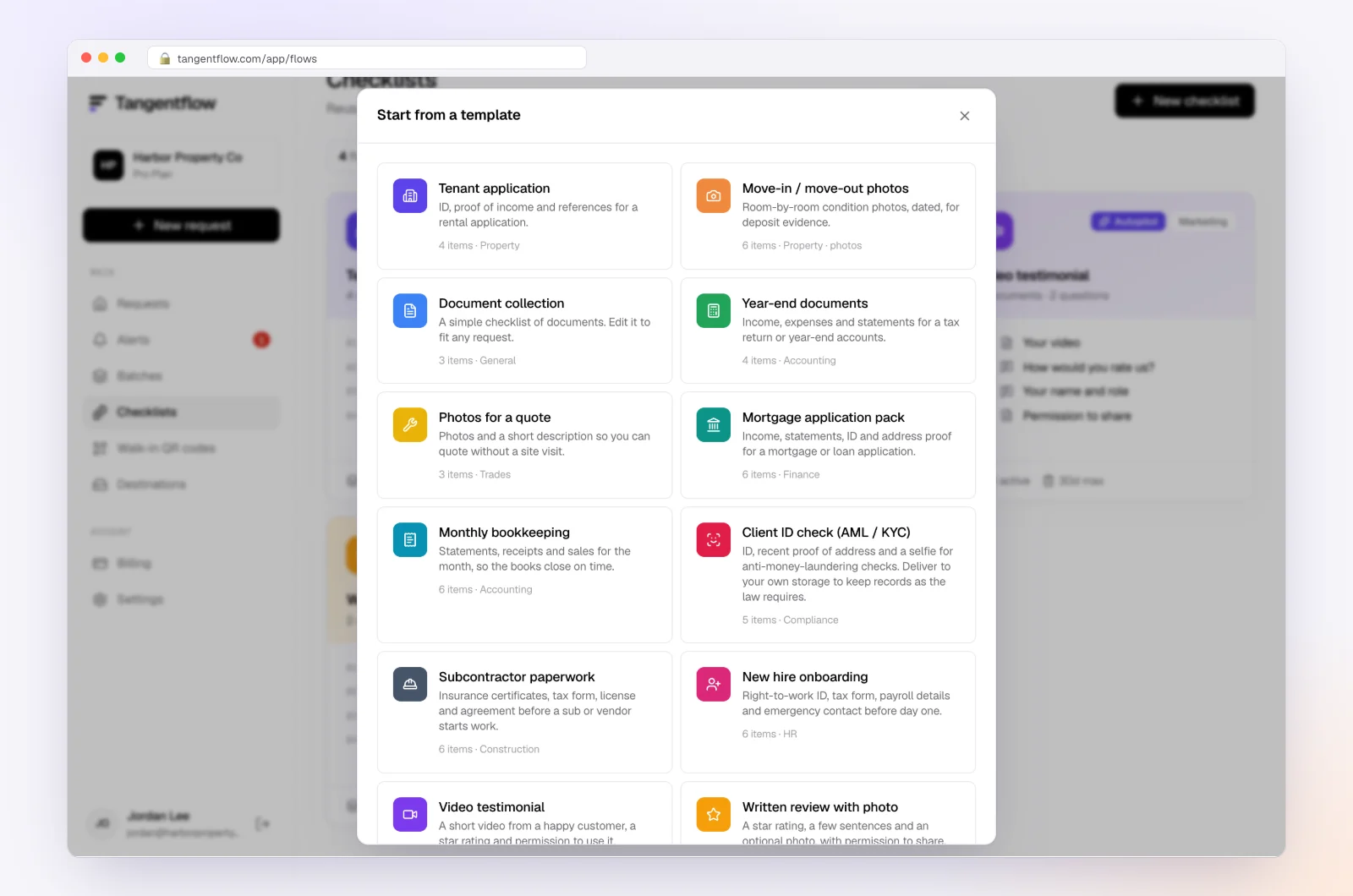
Go to Checklists, choose "Browse templates" and pick Monthly bookkeeping. It starts you with "Bank statements for the month," "Credit card statements," "Receipts and bills you paid," "Sales or invoices you issued," "Payroll report" and a question, "Anything unusual this month?" The card, sales and payroll items are optional, so clients without them are not stuck.
2. Make each item specific, and decide on the email code
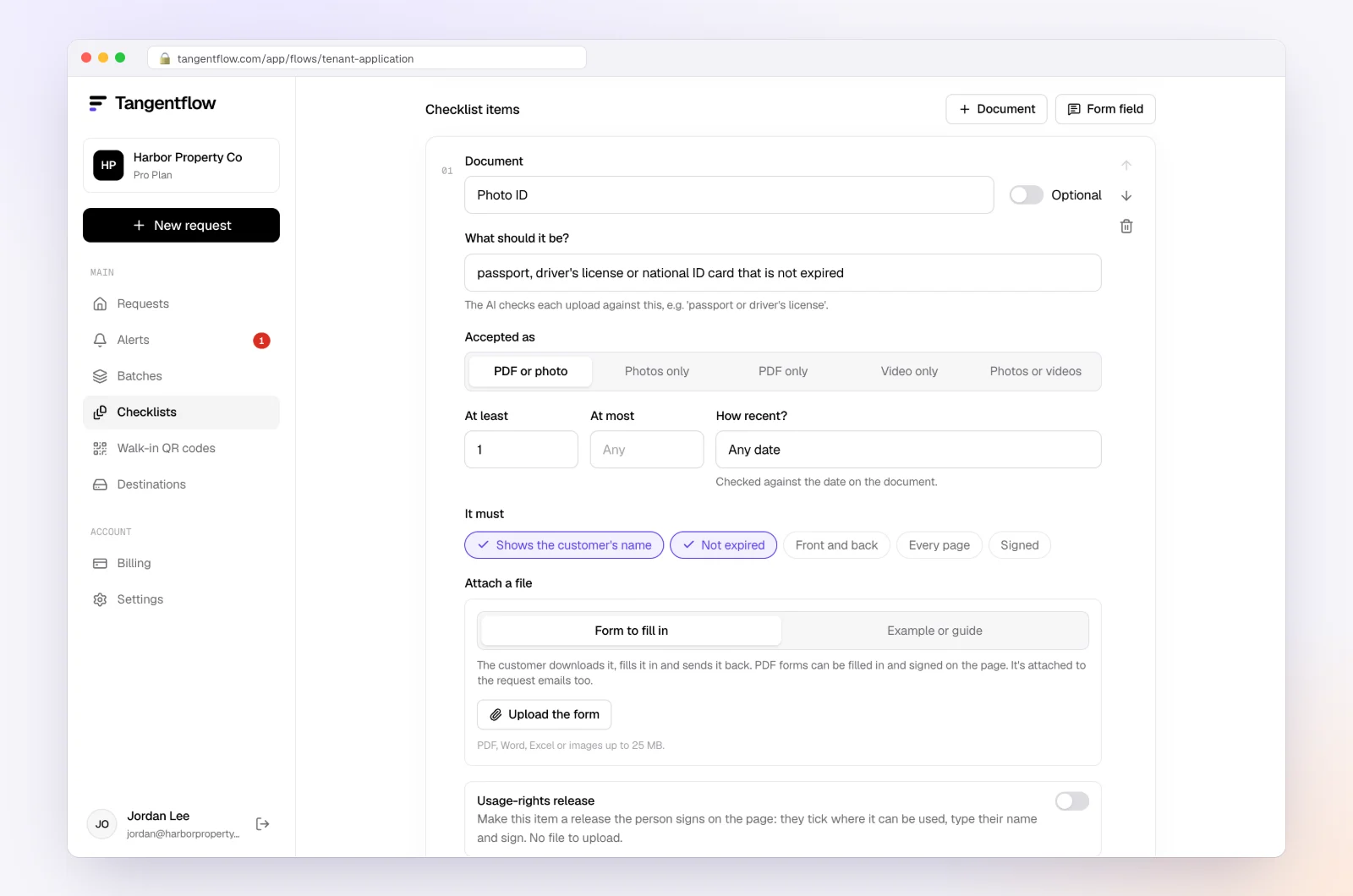
Open an item and fill in "What should it be?", the count, a date rule and rules like every page. Add a hint where clients get confused ("One PDF per business account"). This is where the request problem gets fixed: the client sees named items, not a blank upload box.
Then decide on "Require an email code." With it on, before the link opens the client enters a 6-digit code emailed to them, so a forwarded or leaked link is not enough. It applies to requests sent to an email address; walk-in QR codes stay open. Turn it on for checklists with statements, tax slips or IDs. Leave it off for something like a request for job photos, where one less step matters more.
3. Send the request
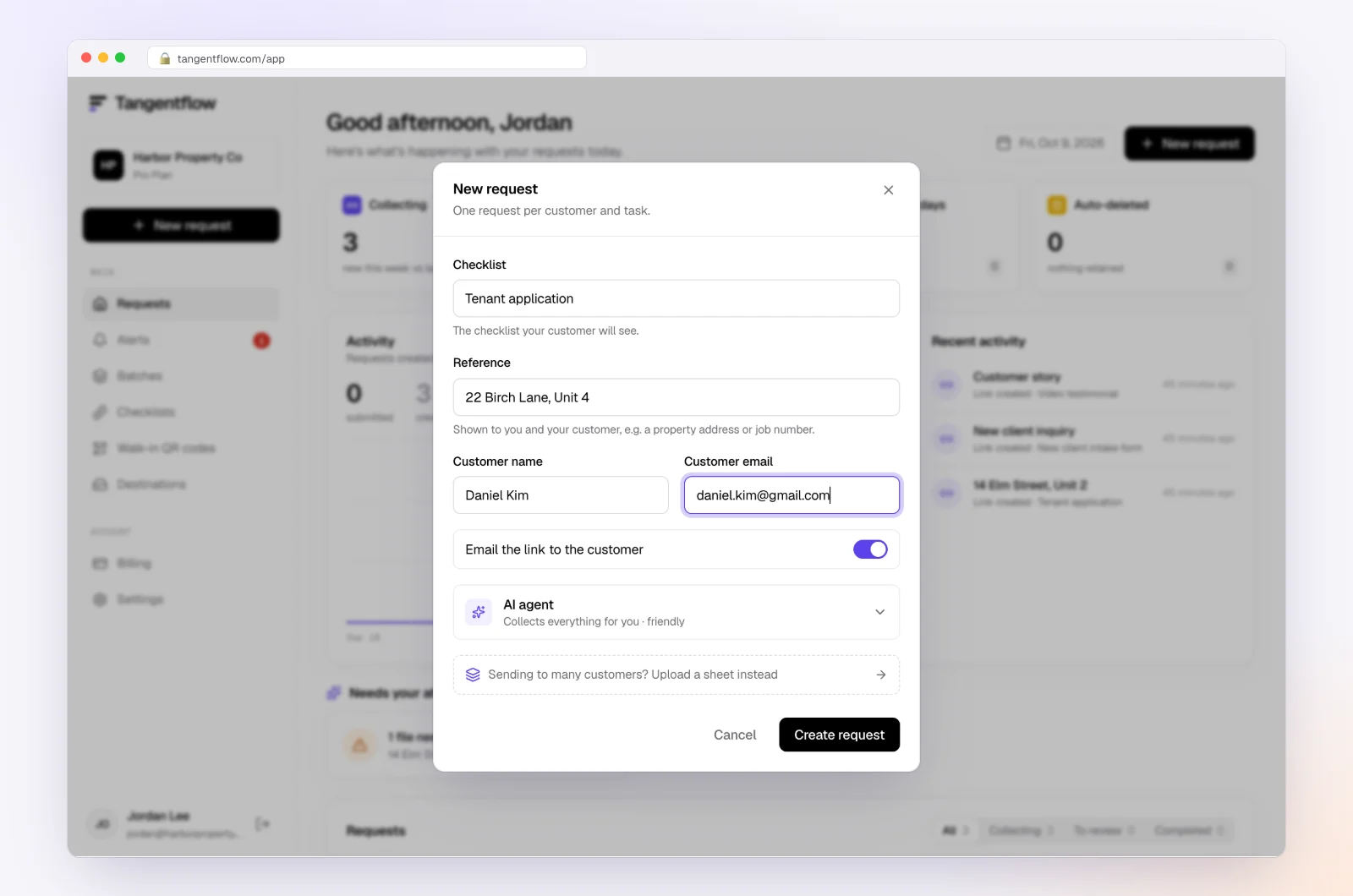
Go to Requests, click "New request," pick the checklist, add a reference such as "October books," the client's name and email, and a needed-by date. Leave "Email the link" on and the agent sends the invitation from your business name. You can also copy the link and send it yourself.
For a whole client list, use "Batches" on Pro: upload or paste up to 100 clients per sheet, schedule the send up to 30 days ahead, and turn on "Repeat every month" so the same clients get a new request on the same day each month, with the same gap to the needed-by date, until you stop it from the batch page. Details in bulk requests.
4. The client taps the link and uploads from their phone
The client sees what is needed, what is done and what is still missing. No account, no app, no password. Each file is checked in seconds for the right kind of document, readability and dates, and the client sees a friendly note if something needs fixing while they still have the statement open. After the client sends everything, the link no longer shows the files.
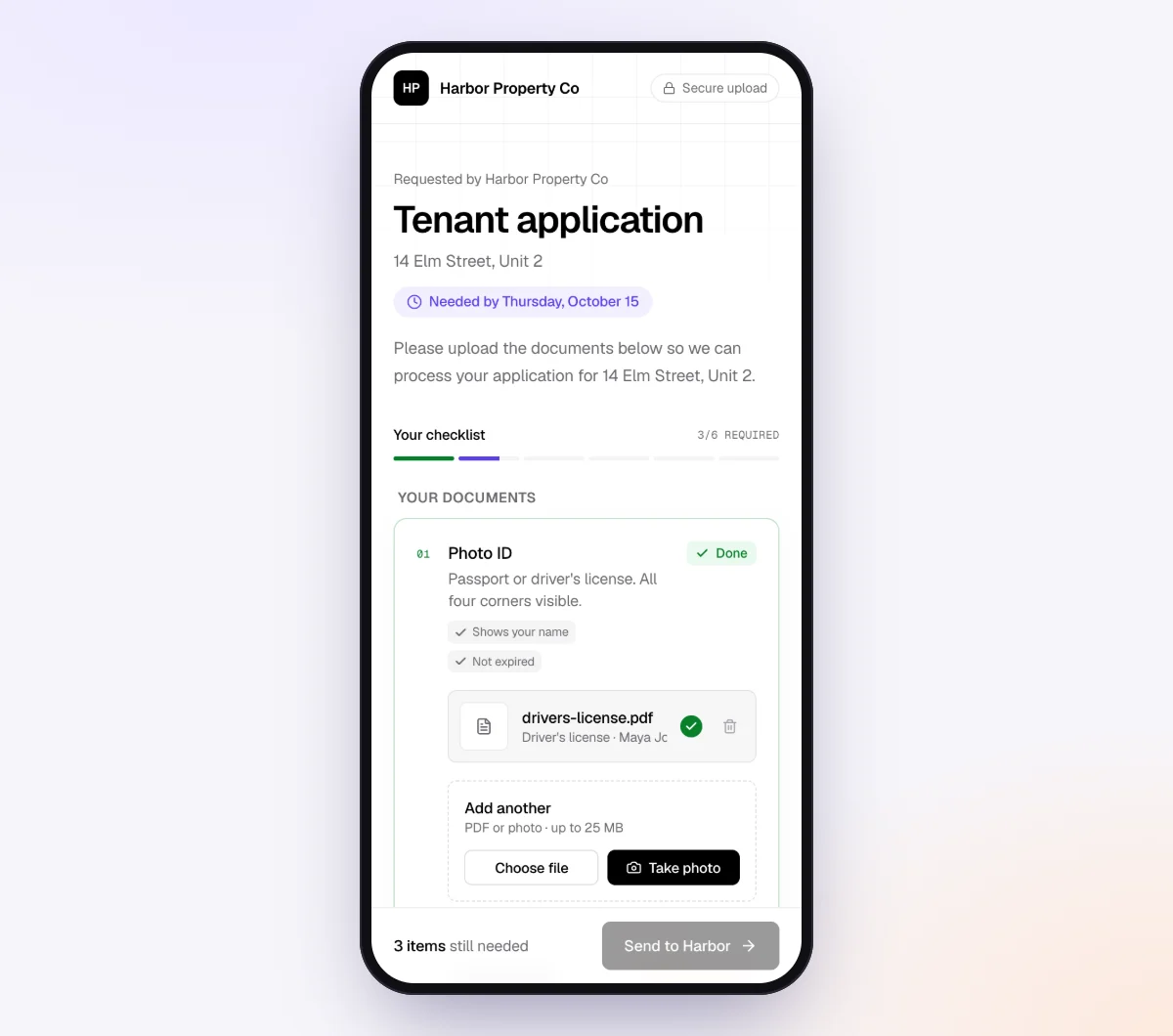
5. Let the agent chase what is left
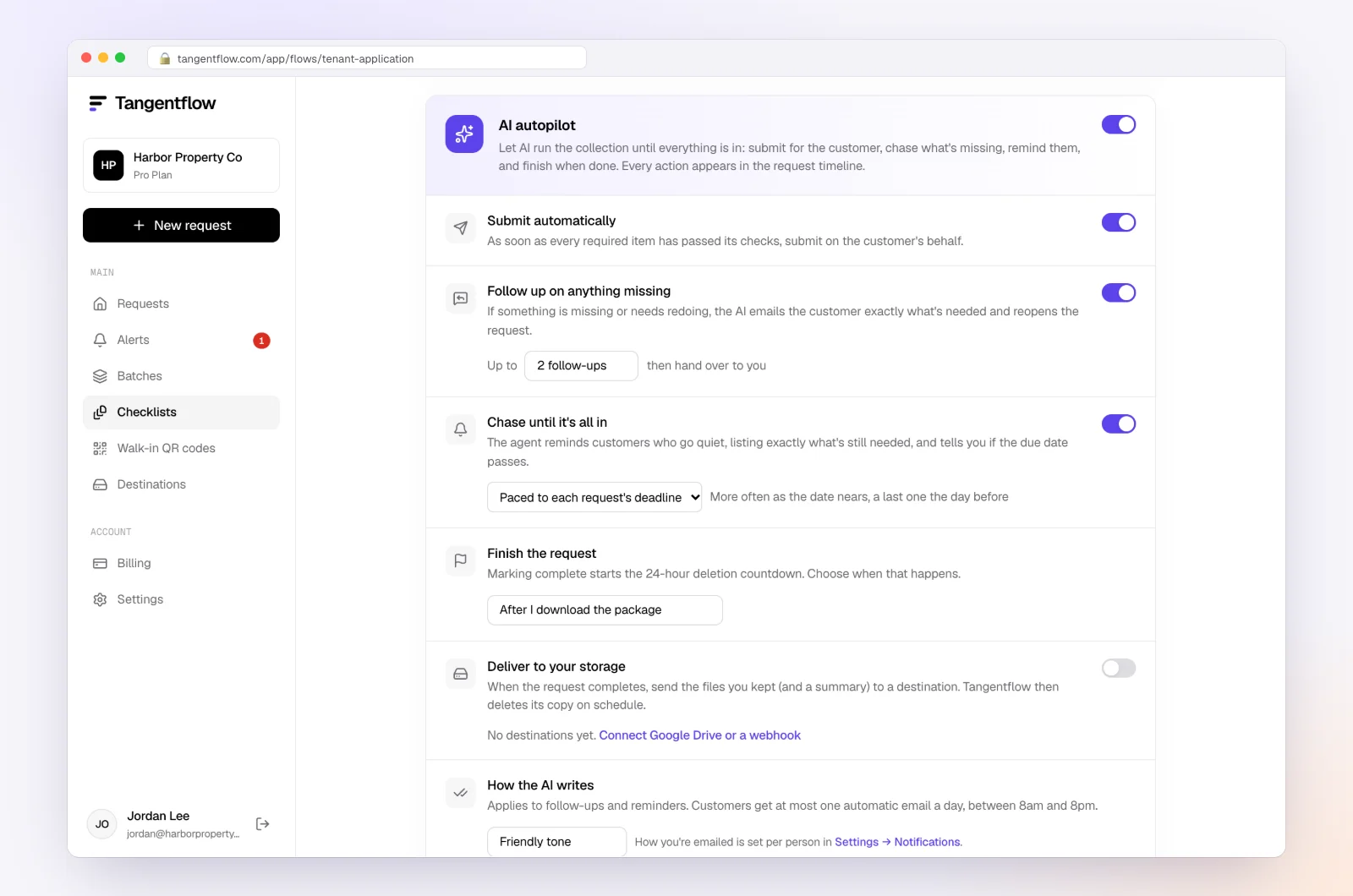
Turn on the autopilot settings for the checklist. The agent paces reminders to the needed-by date, lists only what is still missing, sends at most one automatic email a day and hands the request to you when a client is stuck, upset or past the deadline. On Pro, clients who prefer email can simply reply with attachments, and each file is checked and filed under the right item.
Setups by situation
You do not have to choose one approach for every client. Use this as a starting point.
| Situation | Use | Settings worth turning on |
|---|---|---|
| Monthly bookkeeping clients who never log in | No-login link, repeated monthly | "Monthly bookkeeping" template, "Repeat every month" in Batches, "Require an email code" |
| Annual tax clients | No-login link once a year | "Year-end documents" template, a needed-by date a few weeks before your internal deadline |
| Clients who sign and pay in your portal | Keep the portal for those; link for documents | Same reference as the portal job so files are easy to match |
| Older or less technical clients | No-login link plus a phone number | Plain item names, photos accepted, QR code in person |
| Highly sensitive items (IDs) | Link plus email code | AI check off on ID items if you prefer human review |
The receipts case has its own playbook in how to get clients to send receipts.
When something goes wrong
| Problem | Likely cause | Fix |
|---|---|---|
| Client still emails attachments | Habit, or email is simply easier | On Pro, let them reply to the request email with attachments; otherwise save the file and reply with the link |
| Client cannot find the invitation | Spam folder, or buried | Ask them to check spam, or copy the link and send it yourself |
| Client says the code never arrived | Wrong address on file, or spam | Confirm the email address, ask them to check spam, then request a new code from the page |
| Link went to the wrong person | Typo in the email address | Reset the customer link from the request; the old link stops working at once. Then send the new link to the right address |
| Client sends half and goes quiet | No reminder, or unsure about one item | Let the agent remind about only what is missing; check Alerts for questions |
| Client insists on the portal | They like having everything in one place | Fine. Keep them there. Use links for clients who will not log in |
| A partner wants to drop the portal entirely | Frustration with adoption | Check what else the portal does first: signing, billing, messaging |
Free and Pro, honestly
You can run a real request without paying anything.
| Free | Pro ($29/month) | |
|---|---|---|
| Open requests | 1 at a time | Unlimited |
| AI check on each file | Yes | Yes |
| AI autopilot (answers, reminders, follow-ups) | Your first request | Every request |
| Clients reply by email with attachments | No | Yes |
| Batches, including "Repeat every month" | No | Yes |
| Branding | Tangentflow badge | Your logo |
| Delivery to Google Drive or a webhook | No | Yes |
| Works with AI assistants (MCP) | No | Yes |
| File retention | 7 days | 60 days |
Both plans include unlimited checklists, QR codes and posters, ZIP export, AI summaries and email delivery. Pro is billed monthly with no contract, and you can cancel any time. Full details on the pricing page.
What Tangentflow does not do: SMS or text messages, a native mobile app, full legal e-signature certificates, identity verification, collecting payments, or permanent storage. If you need any of those, pair it with a tool that does.
The whole fix as a checklist
- Pull your last ten late or off-portal requests and sort them into login problems and request problems.
- Rewrite your standard requests as named items with a count, a date rule and a hint.
- Give every request a calendar needed-by date with a one-line reason.
- Set a reminder schedule paced to that date, listing only what is missing.
- Decide what the portal is for (messaging, signing, billing) and keep it for that.
- Send routine document requests as a private link that opens without an account.
- Turn on an emailed code for requests with statements, tax slips or IDs.
- Give older clients a phone number, plain item names and permission to send photos.
- Know how to cut off a link that went to the wrong person.
- Move files to your system of record and delete the other copies.
Frequently asked questions
Why won't clients use the client portal?
Usually for two reasons that get mixed up. The login is a hurdle for something clients open a few times a year, so they forget the password and email you instead. And the request inside the portal is often vague, with no deadline and no reminders, so even clients who can log in put it off.
Do clients need an account to upload documents?
No. Many tools let clients upload through a private link with no account, password or app. Our document collection software comparison covers which tools work that way, including Tangentflow.
Is a no-login upload link secure?
It can be, if each link is private to one request, uploads use HTTPS, files are deleted when you are done and you can cut off a link that went to the wrong person. For sensitive documents, add an emailed code so a forwarded link is not enough on its own. In Tangentflow, that is the "Require an email code" setting on the checklist.
What do I do when clients forget their portal password?
Check whether your portal offers passwordless sign-in or a "remember this device" option and turn it on. For clients who only send documents now and then, a no-login link avoids the reset altogether. Keep the portal for the clients and tasks that need it.
Is a client portal better than email for documents?
For security and organization, usually yes, because files do not scatter across inboxes. But a portal only helps if clients actually use it. A private upload link gives you most of the same benefits for routine requests without the login.
Should I cancel my client portal?
Not before you check what else it does. If clients sign, pay or message you through it, keep it for that. Many firms keep the portal for relationship work and use a no-login link for routine document requests.
How do I get older clients to upload documents?
Remove the login, use plain item names, accept phone photos and give them a phone number to call. Doing the first upload with them in person, from their own phone, often makes the next one easy.
Can I use Tangentflow alongside my portal?
Yes. Use it for document requests and keep the portal for messaging, signing and billing. Download the files as a ZIP or, on Pro, deliver them to Google Drive or a webhook, then file them where you already work.