Guides
How Clients Can Send QuickBooks Receipts Without Access (2026)
Can a client upload receipts to QuickBooks without a login? What the forwarding email, user roles and apps really allow, compared, plus a no-login option.
By Bibin MathewUpdated 19 min read
The short answer
QuickBooks Online has no way for someone who is not a QuickBooks user to send receipts straight into the company file. The receipt forwarding address only accepts email from users with at least vendor access, sent from the address they sign in with, and there is no receipts-only user role. If you do not want the client logged in, collect receipts outside QuickBooks, through a capture app like Dext or Hubdoc or a no-login link, and add them to QuickBooks yourself.
You keep a client's books in QuickBooks Online. They have receipts in a wallet, a glovebox and three inboxes. You want those receipts, and you do not want the client clicking around the company file, recategorizing transactions or calling you because the bank feed "looks wrong." Or the client simply has no QuickBooks login at all, because you own the subscription.
So the question comes up on every QuickBooks Community thread sooner or later: how can my client upload receipts to QuickBooks without access?
The honest short answer: not directly. Every route into the QuickBooks Receipts tab goes through a QuickBooks user. This guide, for independent bookkeepers and small firms in the United States and Canada, covers what QuickBooks Online actually allows (checked against Intuit's help pages), why no user role is "receipts only," the capture apps bookkeepers use instead and a no-login option, with an honest comparison.
Why "just give them access" is not that simple
The first instinct is to add the client as a user and be done with it. That works for some clients. It goes wrong for others, for reasons that are not about trust.
- User seats are limited. Intuit's usage limits article lists billable users by plan: 1 on Simple Start, 3 on Essentials, 5 on Plus and 25 on Advanced, plus 2 accountant firm users that do not count.
- The narrowest useful role still sees a lot, including vendors and expenses.
- Clients who rarely log in forget how. Once a month means password resets and verification prompts. We cover that pattern in why clients won't use the client portal.
- The person with the receipts is not always the owner. It is often an office manager, a spouse or a crew lead with a company card.
Does QuickBooks Online have a receipt forwarding email address?
Yes. QuickBooks Online lets an admin create a custom forwarding address that ends in @assist.intuit.com. Receipts and bills emailed there land in the Receipts tab, where QuickBooks reads them and suggests a match or a new expense for you to review. This is the feature people mean by the "QuickBooks receipts inbox."
How to set up the forwarding address
According to Intuit's article on emailing receipts and bills to QuickBooks Online:
- Sign in as an admin. Only admins can set this up.
- Go to Receipts. In the current menus this is under All apps, then Accounting, then Receipts. On some files it is still under Transactions.
- Select Forward from email and create your custom address, which ends in @assist.intuit.com.
- Confirm it, then select Manage forwarding email and turn on the toggle for each user who should be allowed to forward receipts.
Who can actually forward receipts
This is the part the community threads keep running into. Intuit's article is clear about two rules:
- The sender must have Standard user permissions with Vendor access at a minimum.
- The sender must send from the email address they use to sign in to QuickBooks.
So the forwarding address is not a public inbox. A non-user cannot email receipts to it, and a user forwarding from a personal Gmail instead of their sign-in address will not get through either. That second case is behind most "my email isn't registered for receipt forwarding" posts.
Other details from the same article: attachments can be PDF, JPEG, JPG, GIF or PNG, each between 46 KB and 20 MB, and several receipts can go in one email as long as each receipt is a separate image. QuickBooks pulls the date, amount, vendor and the last four digits of the card from each image.
Can I give a client limited access to QuickBooks, receipts only?
No QuickBooks Online role is limited to uploading receipts. Here is how the roles line up for this one job.
| Role | Counts as a billable user | Can upload or forward receipts | What else it can see or do |
|---|---|---|---|
| Primary or company admin | Yes | Yes | Everything |
| Standard, all access | Yes | Yes | Almost everything except admin settings |
| Standard, limited to vendors | Yes | Yes (meets the "vendor access" minimum) | Vendors, bills, expenses and vendor reports |
| Standard, limited to customers | Yes | No | Customers, sales and customer reports |
| View company reports (reports only) | No | No | Most reports, no transaction detail |
| Track time only | No | No | Their own timesheets |
| Accountant user | No (2 per company) | Yes | Full books access, intended for your firm |
| Custom roles (Advanced only) | Yes | Depends on what you allow | Whatever the custom role allows |
Permissions inside each role change over time, and custom roles exist only on Advanced, so open the role in Manage users and expand each section before you rely on it. In practice:
- The free roles do not help. "View company reports" and "Track time only" do not count toward the user limit, which is why people hope one of them will work. Neither can upload receipts, and neither is offered on every plan.
- The narrowest practical option is Standard, limited to vendors. It uses a paid seat and opens the vendor and expense side of the books. For a trusted client who just should not be in banking or reports, that may be fine.
- Custom roles are the closest thing to "receipts only," but most small bookkeeping clients are not on Advanced. Test any custom role with a dummy user first.
The QuickBooks mobile app
The QuickBooks Online mobile app has a Snap receipt option that sends a photo to the Receipts tab for review. For clients who already use QuickBooks on their phone, nothing is more convenient. It has the same catch as forwarding: the person snapping receipts must be signed in as a user with the right permissions.
"My Accountant" and client requests
In QuickBooks Online Accountant, you can create a client request from the Work area with a due date and publish it to the client's QuickBooks. The client sees it on their My Accountant page and can upload documents in reply. It is a solid way to ask for specific items, but the client still has to sign in to see it.
Receipt capture apps: Dext and Hubdoc
Many bookkeepers solve the "no access" problem by putting a capture app between the client and QuickBooks. The client sends receipts to the app. You review them there and publish into QuickBooks. The client never touches the company file.
Dext for small bookkeepers
Dext (formerly Receipt Bank) gives users submission email addresses, a mobile app and web upload. Its help center describes unique email addresses for each user and account, with separate addresses for costs and sales documents, in a "Single" mode (one document per file) and a "Multiple" mode (one document per page). Extracted documents are published to QuickBooks Online with the account and tax settings you choose. See Dext's article on submitting documents by email.
Where it fits: clients with a steady volume of receipts, where extraction and publishing save you real time. What to weigh: cost per client, and whether each client keeps using the app after the first few months. Check Dext's current practice pricing first.
Hubdoc
Hubdoc, owned by Xero, gives each organization a unique intake address ending in @app.hubdoc.com. According to Xero's help center, documents emailed there are added to that Hubdoc organization, one document per attachment, and you can set up email rules to forward documents automatically. Hubdoc is included with eligible Xero plans and has historically connected to QuickBooks Online as well.
Where it fits: email-heavy clients and Xero practices. What to weigh: if you are QuickBooks-only, check Hubdoc's current QuickBooks Online connection and pricing before you build a workflow around it.
If the client is on Xero: the files inbox
In Xero, each organization has a unique files email address, and documents emailed there land in the file library. Xero advises sharing it only with people you trust. For a Xero client, that makes "send receipts without a login" much easier than in QuickBooks, though it is still a shared address, not a list of what is missing.
Plain options: email, texts and shared folders
Many small practices just have clients send receipts to the bookkeeper: email (zero setup, but receipts scatter across threads), texts (clients love it, your personal phone fills up) or a shared folder per client (easy for Drive or Dropbox users, but it never says what is missing). All three keep the client out of QuickBooks and leave you doing the chasing, checking and filing. Our guide to getting clients to send receipts on time covers the habits that make any of these work better.
The options compared
Here is everything side by side for the one job: getting a client's receipts into your hands for QuickBooks, without giving them a login they will not use.
| Option | Client needs a QuickBooks login | Uses a paid QuickBooks seat | Lands in QuickBooks automatically | Shows what's missing | Reminders and checks | Fits when |
|---|---|---|---|---|---|---|
| QuickBooks forwarding email (@assist.intuit.com) | Yes, and must send from their sign-in address | Yes, unless they are the admin already | Yes, to the Receipts tab | No | No | Client is already a QuickBooks user |
| QuickBooks mobile app, Snap receipt | Yes | Yes | Yes | No | No | Client uses QuickBooks on their phone |
| Limited Standard user (vendors only) | Yes | Yes | Yes | No | No | A trusted client or employee, spare seat |
| My Accountant client requests | Yes | Yes | Into the request, not the Receipts tab | Per request | Due date on the request | Clients already logged in to QuickBooks |
| Dext | No (Dext app or email) | No | After you publish from Dext | Partly | Some | High volume, client adopts the app |
| Hubdoc | No (Hubdoc email or app) | No | After you publish, if connected | Partly | Some | Email-heavy clients, Xero practices |
| Email, texts or shared folder | No | No | No, you upload | No | Manual | A few receipts a month |
| No-login link with checklist and AI agent (Tangentflow) | No | No | No, you upload | Yes | Paced reminders, check on every file | Many clients, same request every month |
The pattern: anything that writes straight into QuickBooks needs a QuickBooks user. Everything else needs one more step from you, publishing from a capture app or uploading files yourself.
Which option should you use?
Match the option to the client. Most practices use two or three.
| Client situation | Best option | Why |
|---|---|---|
| Owner is a QuickBooks user and checks it weekly | Forwarding email plus the mobile app | Receipts land in the Receipts tab with no extra step |
| Owner never logs in and does not want to | No-login link or a capture app's email address | No password, no seat, nothing to forget |
| Employee with a company card, no QuickBooks seat | Capture app or no-login link | Avoids adding a billable user for one job |
| Dozens of receipts every month | Dext or Hubdoc | Extraction and publishing save the most time at volume |
| A short list of specific receipts each month | No-login link | Asking for just those receipts is quicker for everyone |
Getting receipts for QuickBooks in Tangentflow, step by step
Tangentflow sits in the "client never logs in" column. Each client gets a private link that opens on a phone with no account, an AI collection agent sends the request and the reminders, and every file is checked as it arrives. More on how it fits a practice on our bookkeepers page.
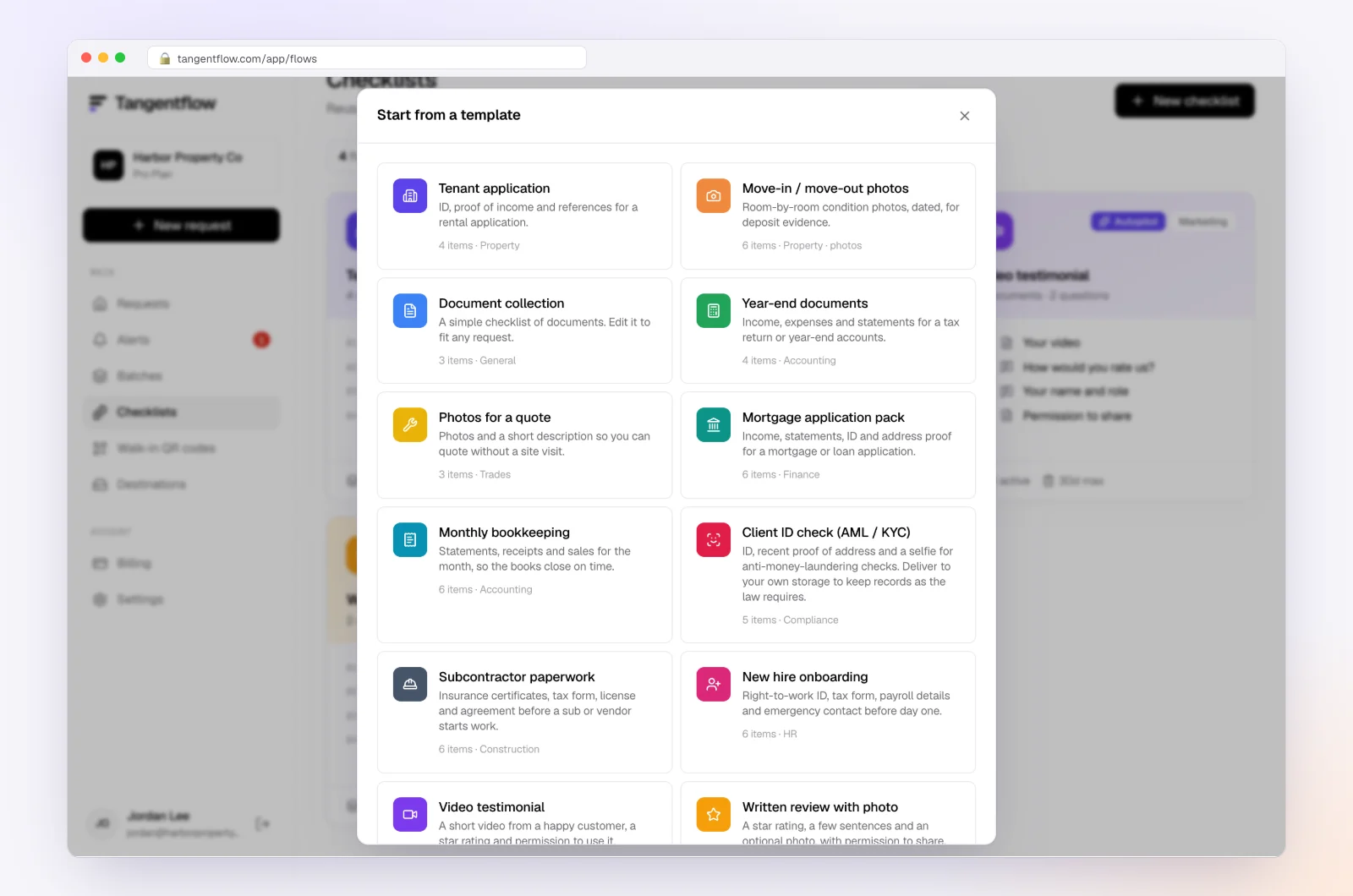
1. Start from the "Monthly bookkeeping" template
Open "Checklists," choose "Browse templates" and pick "Monthly bookkeeping." The item that matters here is "Receipts and bills you paid," with the hint "Photos are fine. Make sure the date and total are readable." The template also includes "Bank statements for the month" and optional items such as "Credit card statements" and "Payroll report." Remove whatever a client group does not need.
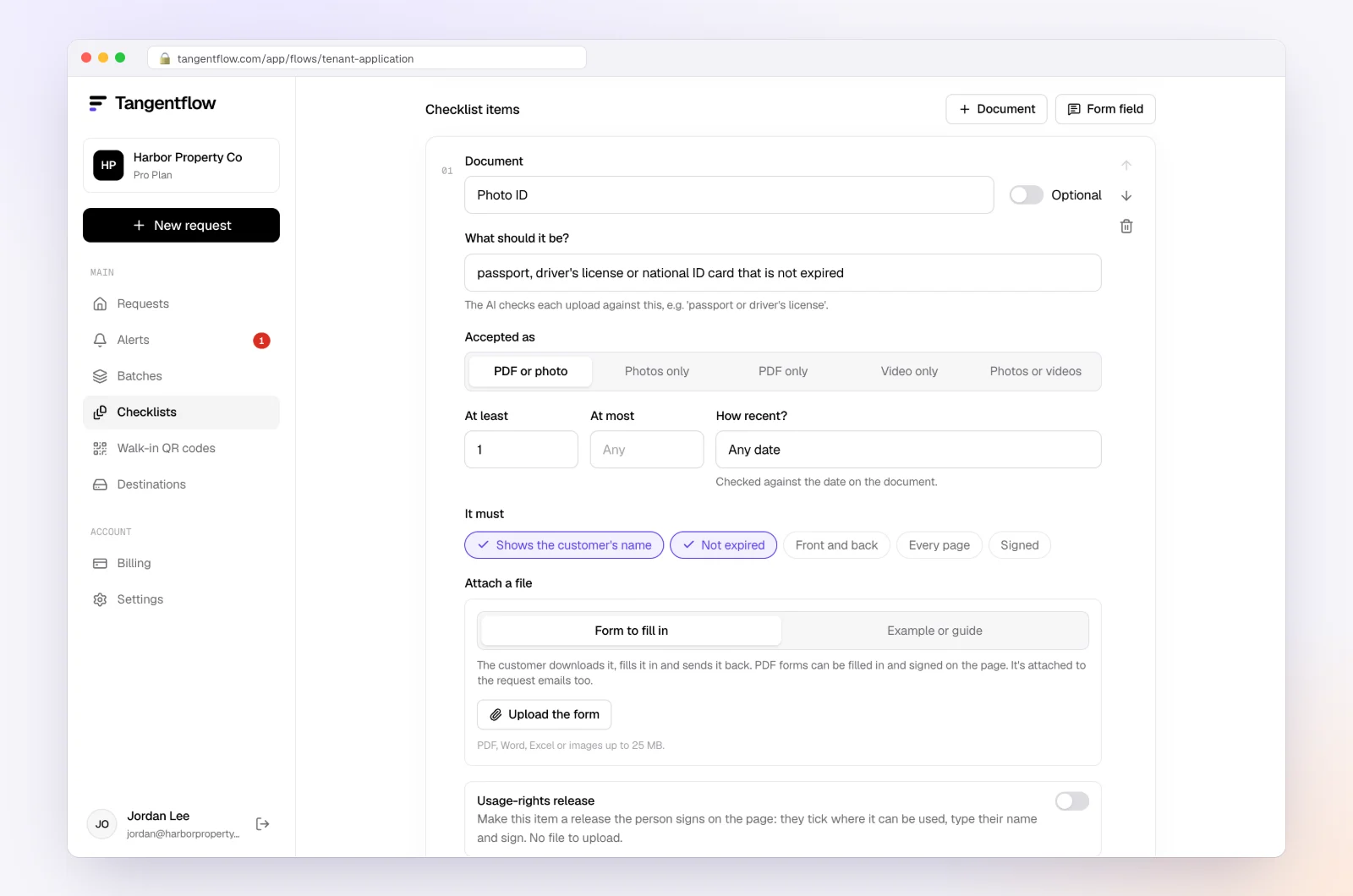
2. Tell the receipts item what "good" looks like
Open "Receipts and bills you paid" in the checklist editor. Set "What should it be?" to something like "receipt or invoice showing the vendor, date, items and total." Keep a date rule so old receipts are flagged, add an "Example" describing a good photo and a short tip: "One receipt per photo, flat surface, good light." One receipt per photo also suits QuickBooks, which reads each image as one receipt when you upload it later.
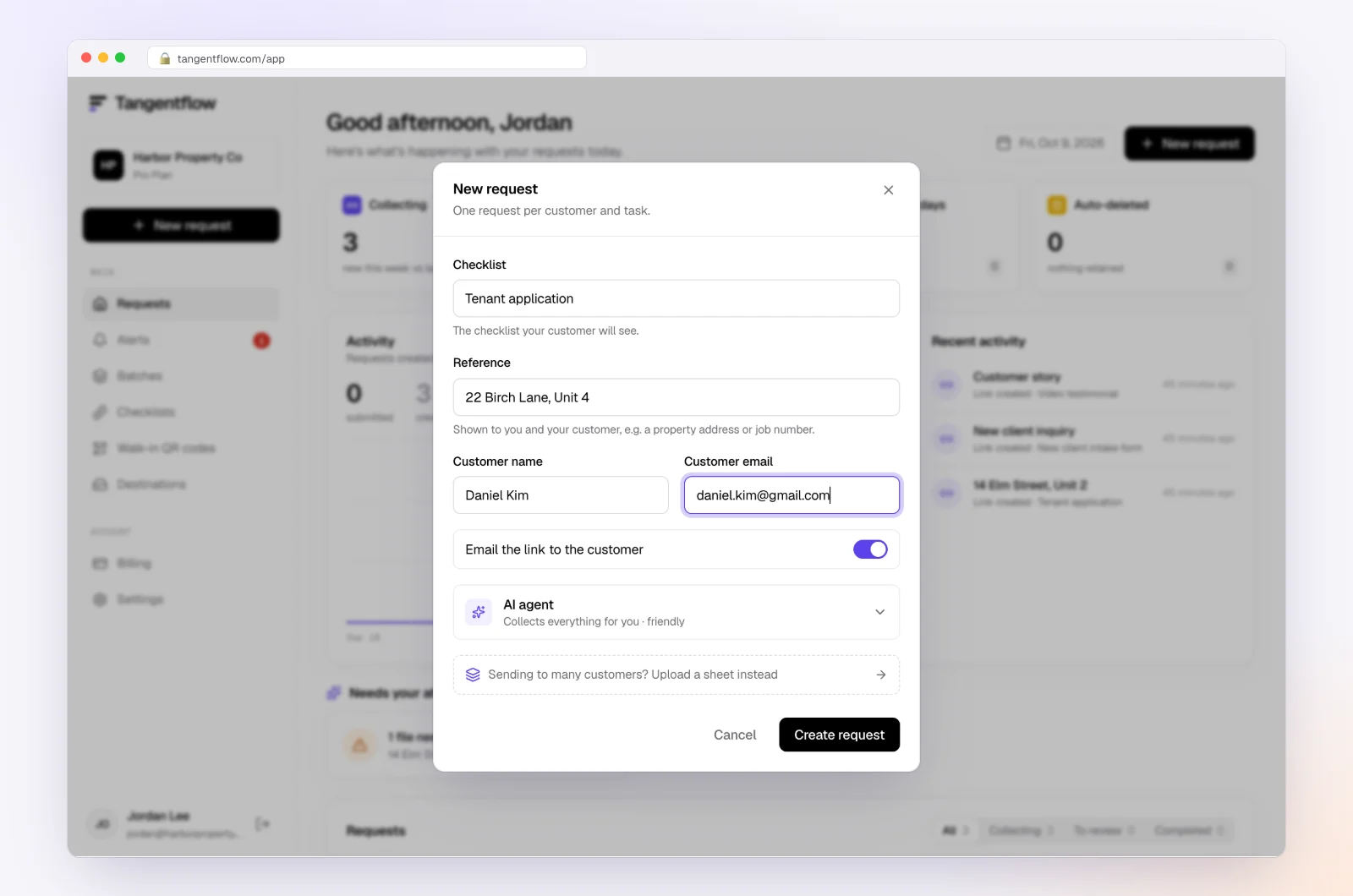
3. Send the request, or a monthly batch
For one client, go to "Requests," click "New request," choose the checklist, add a reference such as "Acme Bakery, October 2026," the client's name and email, and a needed-by date. Leave "Email the link" on and the agent sends the invitation from your business name.
For your whole client list, use "Batches" on Pro: upload an Excel file or CSV, or paste rows from Excel or Google Sheets, up to 100 clients per sheet, and schedule the send up to 30 days ahead. Turn on "Repeat every month" and the same clients get a new request on the same day each month, with the same gap to the needed-by date, until you stop it from the batch page. See bulk requests.
4. The client snaps photos, and problems are caught on the spot
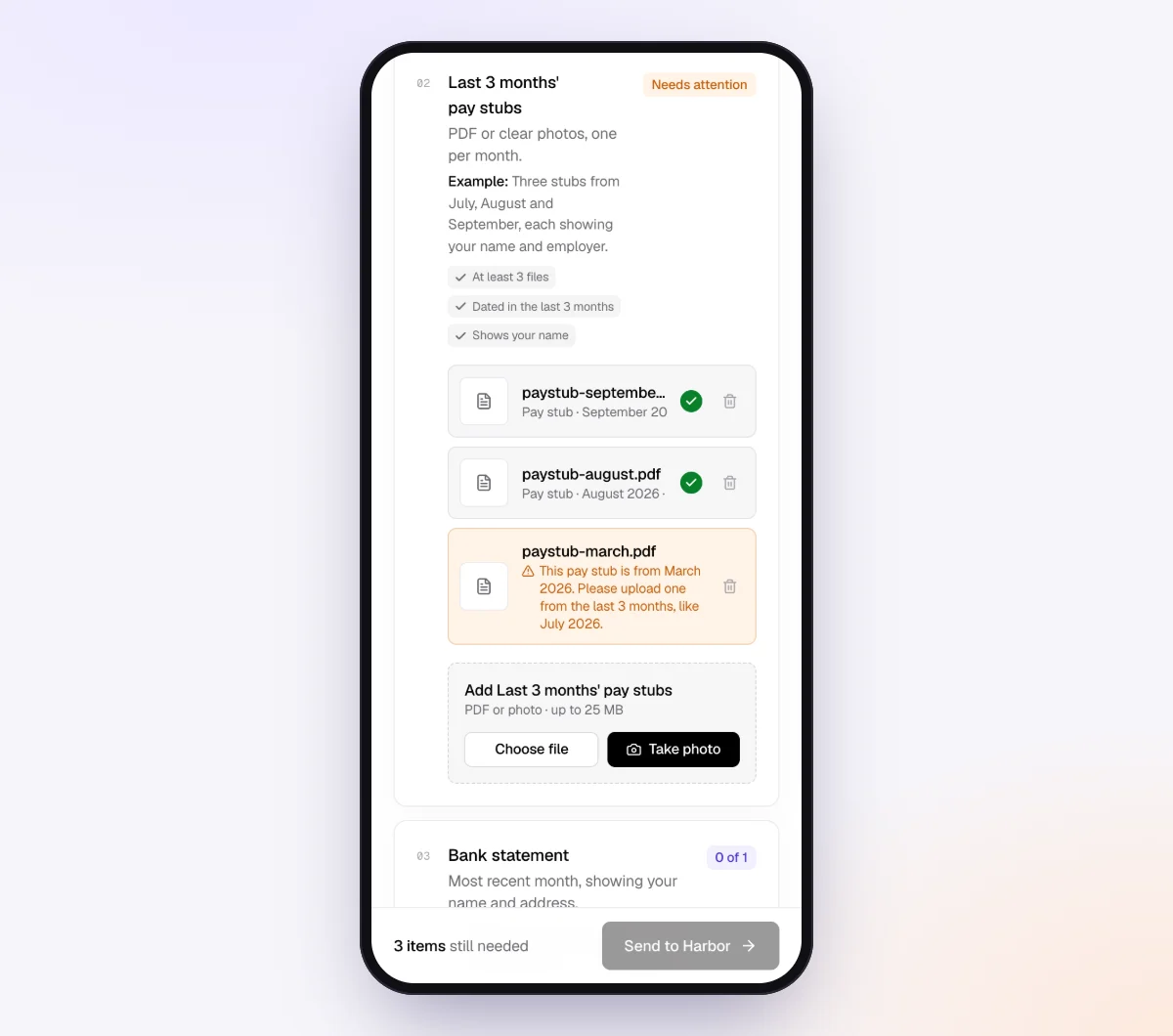
The client opens the link on their phone, with no account and no app, and uploads from the camera or camera roll. Each file is checked in seconds by document checks: the right kind of document, readable and recent enough. If a photo is too dark or cuts off the total, the client sees a friendly note explaining what to fix while the receipt is still in their hand.
On Pro, clients who would rather use email can reply to the request email with receipts attached. Each file is checked and filed under the right item, and replies are only accepted from the client's address on file. For many clients, that is the "forwarding address" they wanted from QuickBooks, without a QuickBooks login.
5. The agent chases, and you collect the files
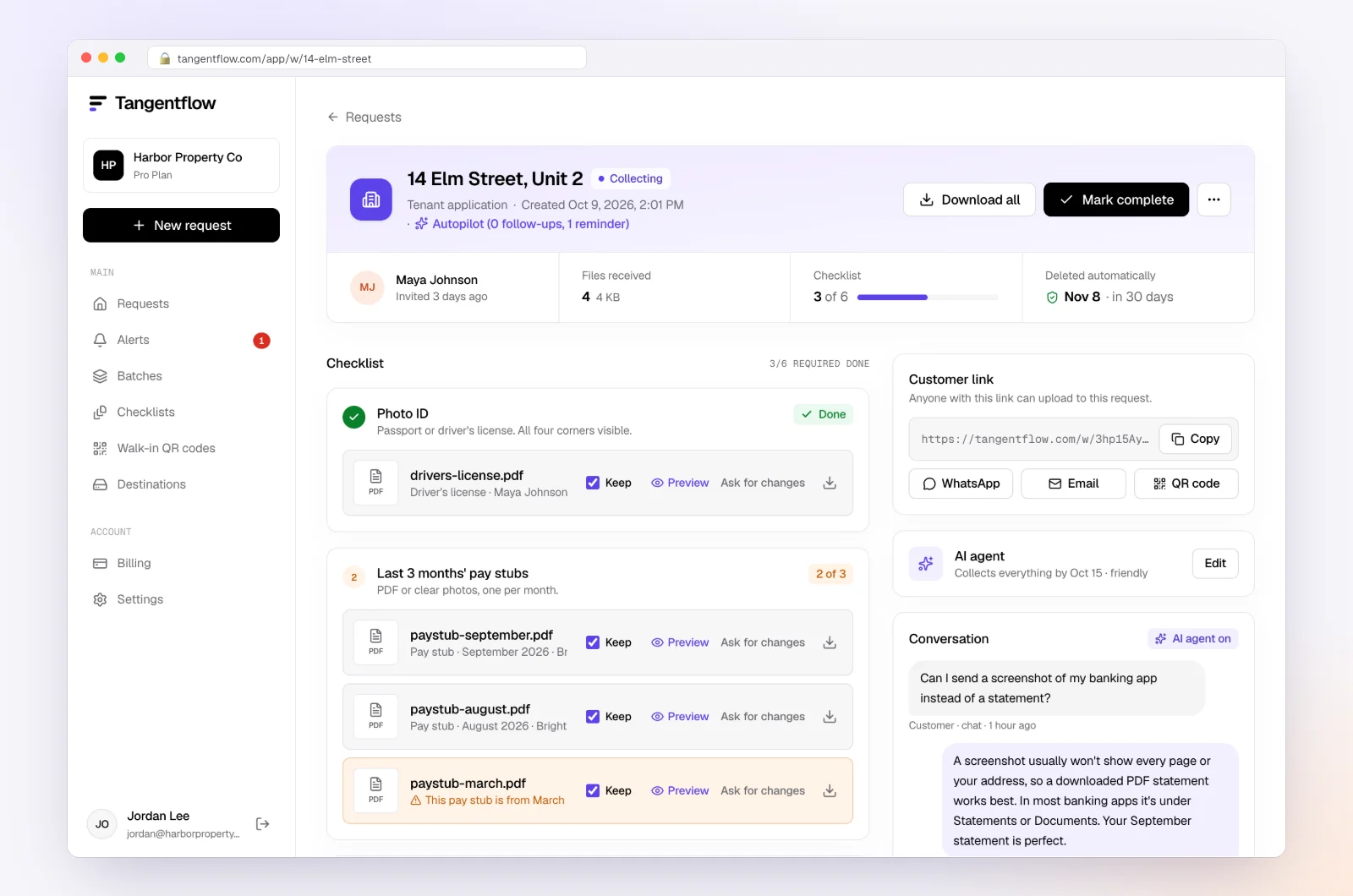
With autopilot on, reminders are paced to the needed-by date, at most one automatic email a day, each listing only what is still missing. The agent answers questions from your checklist and notes, and hands off to you when a client is upset or misses the date. When the request is done, download the ZIP, or on Pro deliver to Google Drive or a webhook, then mark it complete. Files are deleted 24 hours later.
Moving the receipts into QuickBooks yourself
Since Tangentflow, email, texts and shared folders all stop short of QuickBooks, here is a tidy way to do the last step. As the accountant user on the client's file, you have the access the client does not.
- Download the files. Unzip the package, or open the client's Google Drive folder if you deliver there on Pro.
- Upload to the Receipts tab. In the client's QuickBooks file, go to Receipts and drag in the images or PDFs, or use the upload button. QuickBooks reads each one and suggests a match or a new expense.
- Or attach to the transaction. If you already categorized the bank feed line, open the transaction and add the receipt as an attachment instead.
- Review and match. Confirm vendor, date, amount and category. A receipt with no matching bank line usually means a personal card, cash or a duplicate.
- Delete the extra copies. Once receipts are in QuickBooks, the ZIP in your downloads folder is just exposure.
Setups by practice situation
| Situation | What to use | Settings worth turning on | Learn more |
|---|---|---|---|
| Monthly clients who never log in | No-login link, repeated monthly | "Monthly bookkeeping" template, "Repeat every month" in Batches | Monthly bookkeeping checklist |
| Clients sending receipts plus statements or payroll | One link for everything | "Require an email code" on the checklist | Security |
| Canadian clients claiming input tax credits | Receipts that show GST/HST details | A tip asking for the full receipt, not the card slip | GST/HST receipt requirements |
"Require an email code" is an optional checklist setting: before the link opens, the client enters a 6-digit code emailed to them, so a forwarded link is not enough on its own. If a link ever goes to the wrong person, reset the customer's link from the request and the old one stops working. After the client sends everything, the link no longer shows the files.
When something goes wrong
| Problem | Likely cause | Fix |
|---|---|---|
| Forwarded receipts never show up in QuickBooks | Sender is not a user, or sent from a different email address | Forward from the QuickBooks sign-in address, and check the toggle in Manage forwarding email |
| "Email isn't registered for receipt forwarding" | Same as above, or a typo in the sign-in email | Compare the user's sign-in email with the "From" address character by character |
| Forwarding toggle is missing for a user | Role has no vendor access | Change them to a role with at least vendor access, or use another option |
| Can't add the client as a user | No billable seats left, common on Simple Start | Use a capture app or a no-login link instead of upgrading for one job |
| Client keeps texting photos anyway | Habit, or your option has too many steps | Send one link on the same day every month; reply to texts with the link |
| Client sends the card statement instead | Thinks the statement is enough | Explain that the statement shows the amount, not what was bought |
Check your "Alerts" in Tangentflow during close week. Handoffs and missed dates show up there, so you only spend time on clients who need a person.
Free and Pro, honestly
You can run a real request without paying anything.
| Free | Pro ($29/month) | |
|---|---|---|
| Open requests | 1 at a time | Unlimited |
| AI check on each file | Yes | Yes |
| AI autopilot (answers, reminders, follow-ups) | Your first request | Every request |
| Batches, including "Repeat every month" | No | Yes |
| Clients reply by email with attachments | No | Yes |
| Branding | Tangentflow badge | Your logo |
| Delivery to Google Drive or a webhook | No | Yes |
| Works with AI assistants (MCP) | No | Yes |
| File retention | 7 days | 60 days |
Both plans include unlimited checklists, QR codes and posters, ZIP export, AI summaries and email delivery. Pro is billed monthly with no contract, and you can cancel any time. Full details on the pricing page.
What Tangentflow does not do: SMS or text messages, a native mobile app, full legal e-signature certificates, identity verification, collecting payments, or permanent storage. If you need any of those, pair it with a tool that does. It also does not integrate with QuickBooks, connect to bank feeds, categorize transactions or replace your bookkeeping software.
The whole approach as a checklist
- Decide, client by client, whether they should be a QuickBooks user at all.
- For clients who are users, set up the @assist.intuit.com forwarding address and turn them on in Manage forwarding email.
- Tell them to forward from the exact email they sign in with.
- Skip the hunt for a receipts-only role. If you add a limited user, use Standard limited to vendors.
- For high-volume clients, consider a capture app like Dext or Hubdoc.
- For everyone else, send one no-login link on the same day every month, for a specific list of receipts.
- Ask for one receipt per photo, with the date, vendor and total readable.
- Upload the receipts to the Receipts tab yourself, in one sitting, and review the matches.
- Delete the extra copies once the receipts are in QuickBooks.
Frequently asked questions
How can my client upload receipts to QuickBooks without access?
They cannot send receipts directly into a QuickBooks Online company without being a user. The forwarding address, the mobile app and client requests all need a QuickBooks login. Collect the receipts outside QuickBooks instead, through a capture app or a no-login link, and upload them to the Receipts tab yourself.
What is the QuickBooks receipt forwarding email address?
It is a custom address an admin creates under Receipts with "Forward from email," ending in @assist.intuit.com. Receipts emailed there appear in the Receipts tab for review. Only users with at least vendor access, turned on in Manage forwarding email, can use it, and they must send from their QuickBooks sign-in email.
Can I give a client receipts-only access in QuickBooks Online?
There is no built-in receipts-only role. The free "View company reports" and "Track time only" roles cannot upload receipts. The narrowest standard option is a billable Standard user limited to vendors, and QuickBooks Online Advanced adds custom roles you can narrow further.
Is Dext or Hubdoc better for small bookkeepers using QuickBooks?
Dext is built around publishing to QuickBooks Online and other ledgers and suits clients with a steady volume of receipts. Hubdoc is owned by Xero and is included with eligible Xero plans, so it is a natural fit for Xero practices. For a QuickBooks-only practice, compare current pricing and the QuickBooks connection on each vendor's site, and test with two or three clients first.
Does Tangentflow send receipts into QuickBooks?
No. Tangentflow does not integrate with QuickBooks. It collects and checks receipts through a no-login link, then you download a ZIP or, on Pro, deliver to Google Drive or a webhook, and upload the receipts to QuickBooks yourself.
Can clients email receipts instead of using a link?
In QuickBooks, only if they are users sending from their sign-in address. In Tangentflow on Pro, clients can reply to the request email with receipts attached, and each file is checked and filed under the right item. Replies are only accepted from the client's email address on file.
Is there a free way to try this?
Yes. The Free plan gives you one open request at a time, with the full AI agent on your first request. Try it free with a client who never logs in to QuickBooks.